> ## Documentation Index
> Fetch the complete documentation index at: https://docs.kombify.io/llms.txt
> Use this file to discover all available pages before exploring further.

# Fotos vom Handy sichern

> Verbinde dein Handy mit deinem Foto-Server, vom ersten App-Start bis zum ersten hochgeladenen Foto.

export const PhotoGuideSummary = ({children, ...props}) => {
  const Tag = "summary";
  return <Tag {...props}>{children}</Tag>;
};

export const PhotoGuideStrong = ({children, ...props}) => {
  const Tag = "strong";
  return <Tag {...props}>{children}</Tag>;
};

export const PhotoGuideFooter = ({children, ...props}) => {
  const Tag = "footer";
  return <Tag {...props}>{children}</Tag>;
};

export const PhotoGuideFigure = ({children, ...props}) => {
  const Tag = "figure";
  return <Tag {...props}>{children}</Tag>;
};

export const PhotoGuideFigcaption = ({children, ...props}) => {
  const Tag = "figcaption";
  return <Tag {...props}>{children}</Tag>;
};

export const PhotoGuideDialog = ({children, ...props}) => {
  const Tag = "dialog";
  return <Tag {...props}>{children}</Tag>;
};

export const PhotoGuideDetails = ({children, ...props}) => {
  const Tag = "details";
  return <Tag {...props}>{children}</Tag>;
};

export const PhotoGuideAside = ({children, ...props}) => {
  const Tag = "aside";
  return <Tag {...props}>{children}</Tag>;
};

export const PhotoGuideArticle = ({children, ...props}) => {
  const Tag = "article";
  return <Tag {...props}>{children}</Tag>;
};

export const PhotoGuideIcon = ({name}) => {
  const icons = {
    icon0: <svg aria-hidden="true" className="ico" fill="none" stroke="currentColor" strokeLinecap="round" strokeLinejoin="round" strokeWidth="1.7" viewBox="0 0 24 24"><rect height="20" rx="3" width="12" x="6" y="2"></rect><path d="M10 5h4M11 19h2"></path></svg>,
    icon1: <svg aria-hidden="true" className="ico" fill="none" stroke="currentColor" strokeLinecap="round" strokeLinejoin="round" strokeWidth="1.7" viewBox="0 0 24 24"><rect height="7" rx="1.5" width="7" x="3" y="3"></rect><rect height="7" rx="1.5" width="7" x="14" y="3"></rect><rect height="7" rx="1.5" width="7" x="3" y="14"></rect><rect height="7" rx="1.5" width="7" x="14" y="14"></rect></svg>,
    icon2: <svg aria-hidden="true" className="ico" fill="none" stroke="currentColor" strokeLinecap="round" strokeLinejoin="round" strokeWidth="1.7" viewBox="0 0 24 24"><path d="M12 5v15M3 4c4-1 6 0 9 1 3-1 5-2 9-1v15c-4-1-6 0-9 1-3-1-5-2-9-1Z"></path></svg>,
    icon3: <svg aria-hidden="true" className="ico" fill="none" stroke="currentColor" strokeLinecap="round" strokeLinejoin="round" strokeWidth="1.7" viewBox="0 0 24 24"><path d="M6 8V3h12v5M6 17H3V8h18v9h-3M6 14h12v7H6Z"></path><path d="M17 11h.01"></path></svg>,
    icon4: <svg aria-hidden="true" className="ico" fill="none" stroke="currentColor" strokeLinecap="round" strokeLinejoin="round" strokeWidth="1.7" viewBox="0 0 24 24"><path d="m5 12 4 4L19 6"></path></svg>,
    icon5: <svg aria-hidden="true" className="ico" fill="none" stroke="currentColor" strokeLinecap="round" strokeLinejoin="round" strokeWidth="1.7" viewBox="0 0 24 24"><path d="M5 12h14M13 6l6 6-6 6"></path></svg>,
    icon6: <svg aria-hidden="true" className="ico" fill="none" stroke="currentColor" strokeLinecap="round" strokeLinejoin="round" strokeWidth="1.7" viewBox="0 0 24 24"><path d="M14 4h6v6m0-6L10 14"></path><path d="M10 4H5a1 1 0 0 0-1 1v14a1 1 0 0 0 1 1h14a1 1 0 0 0 1-1v-5"></path></svg>,
    icon7: <svg aria-hidden="true" className="ico" fill="none" stroke="currentColor" strokeLinecap="round" strokeLinejoin="round" strokeWidth="1.7" viewBox="0 0 24 24"><path d="M16.7 1.8c0 2.1-1.7 4.4-3.7 4.2-.4-2.1 1.8-4.3 3.7-4.2ZM20.4 17.3c-.5 1.2-.8 1.7-1.5 2.7-1 1.5-2.4 3.3-4.2 3.3-1.6 0-2-1-4.1-.9-2.1 0-2.5 1-4.2.9-1.8-.1-3.1-1.7-4.1-3.2C-.5 15.9-.7 10.4 1 7.6c1.2-2 3.1-3.1 4.9-3.1 1.9 0 3.1 1 4.7 1 1.5 0 2.5-1 4.7-1 1.6 0 3.3.9 4.5 2.3-4 2.2-3.3 8 0 10.5Z" fill="currentColor" stroke="none" transform="translate(2 0) scale(.87)"></path></svg>,
    icon8: <svg aria-hidden="true" className="ico" fill="none" stroke="currentColor" strokeLinecap="round" strokeLinejoin="round" strokeWidth="1.7" viewBox="0 0 24 24"><path d="M5 12a7 7 0 0 1 14 0v6H5Zm2-6L5 3m12 3 2-3M2 12v5m20-5v5M8 18v4m8-4v4"></path><path d="M8.5 9h.01M15.5 9h.01"></path></svg>,
    icon9: <svg aria-hidden="true" className="ico" fill="none" stroke="currentColor" strokeLinecap="round" strokeLinejoin="round" strokeWidth="1.7" viewBox="0 0 24 24"><rect height="7" rx="2" width="18" x="3" y="3"></rect><rect height="7" rx="2" width="18" x="3" y="14"></rect><path d="M7 6.5h.01M7 17.5h.01M16 6.5h2M16 17.5h2"></path></svg>,
    icon10: <svg aria-hidden="true" className="ico" fill="none" stroke="currentColor" strokeLinecap="round" strokeLinejoin="round" strokeWidth="1.7" viewBox="0 0 24 24"><circle cx="12" cy="12" r="9"></circle><path d="M12 11v5M12 7h.01"></path></svg>,
    icon11: <svg aria-hidden="true" className="ico" fill="none" stroke="currentColor" strokeLinecap="round" strokeLinejoin="round" strokeWidth="1.7" viewBox="0 0 24 24"><circle cx="12" cy="12" r="9"></circle><path d="m8 12 3 3 5-6"></path></svg>,
    icon12: <svg aria-hidden="true" className="ico" fill="none" stroke="currentColor" strokeLinecap="round" strokeLinejoin="round" strokeWidth="1.7" viewBox="0 0 24 24"><path d="M3 7h4l2-3h6l2 3h4v13H3Z"></path><circle cx="12" cy="13" r="4"></circle></svg>,
    icon13: <svg aria-hidden="true" className="ico" fill="none" stroke="currentColor" strokeLinecap="round" strokeLinejoin="round" strokeWidth="1.7" viewBox="0 0 24 24"><circle cx="10.5" cy="10.5" r="6.5"></circle><path d="m16 16 5 5M7 10.5h7M10.5 7v7"></path></svg>,
    icon14: <svg aria-hidden="true" className="ico" fill="none" stroke="currentColor" strokeLinecap="round" strokeLinejoin="round" strokeWidth="1.7" viewBox="0 0 24 24"><path d="M2 8a16 16 0 0 1 20 0M5 12a11 11 0 0 1 14 0M8.5 16a5 5 0 0 1 7 0M12 20h.01"></path></svg>,
    icon15: <svg aria-hidden="true" className="ico" fill="none" stroke="currentColor" strokeLinecap="round" strokeLinejoin="round" strokeWidth="1.7" viewBox="0 0 24 24"><rect height="14" rx="2" width="20" x="2" y="3"></rect><path d="M8 22h8M12 17v5"></path></svg>,
    icon16: <svg aria-hidden="true" className="ico" fill="none" stroke="currentColor" strokeLinecap="round" strokeLinejoin="round" strokeWidth="1.7" viewBox="0 0 24 24"><path d="m15 5-7 7 7 7"></path></svg>,
    icon17: <svg aria-hidden="true" className="ico" fill="none" stroke="currentColor" strokeLinecap="round" strokeLinejoin="round" strokeWidth="1.7" viewBox="0 0 24 24"><path d="M12 3 3 7v6c0 5 9 9 9 9s9-4 9-9V7Z"></path><path d="m8 12 3 3 5-6"></path></svg>,
    icon18: <svg aria-hidden="true" className="ico" fill="none" stroke="currentColor" strokeLinecap="round" strokeLinejoin="round" strokeWidth="1.7" viewBox="0 0 24 24"><path d="m12 3 2.8 6.2L21 12l-6.2 2.8L12 21l-2.8-6.2L3 12l6.2-2.8Z"></path></svg>,
    icon19: <svg aria-hidden="true" className="ico" fill="none" stroke="currentColor" strokeLinecap="round" strokeLinejoin="round" strokeWidth="1.7" viewBox="0 0 24 24"><path d="m6 6 12 12M6 18 18 6"></path></svg>
  };
  return icons[name] || null;
};

export const PhotoGuide = ({children}) => {
  const rootRef = useRef(null);
  useEffect(() => {
    const root = rootRef.current;
    if (!root) return;
    const $ = (selector, scope = root) => scope.querySelector(selector);
    const $$ = (selector, scope = root) => Array.from(scope.querySelectorAll(selector));
    const byId = id => $('[id="' + id + '"]');
    const abort = new AbortController();
    const listen = (node, event, handler) => node && node.addEventListener(event, handler, {
      signal: abort.signal
    });
    const storageKey = 'kombify-photo-guide-v3';
    let current = 0;
    let completed = [false, false, false, false];
    let verified = [false, false, false];
    let toastTimer;
    try {
      const saved = JSON.parse(localStorage.getItem(storageKey) || 'null');
      if (Array.isArray(saved?.completed) && saved.completed.length === 4) completed = saved.completed.map(Boolean);
      if (Array.isArray(saved?.verified) && saved.verified.length === 3) verified = saved.verified.map(Boolean);
    } catch (_) {}
    if (!verified.every(Boolean)) completed[3] = false;
    const save = () => {
      try {
        localStorage.setItem(storageKey, JSON.stringify({
          completed,
          verified
        }));
      } catch (_) {}
    };
    const toast = text => {
      const node = $('#kpg-toast');
      node.textContent = text;
      node.hidden = false;
      clearTimeout(toastTimer);
      toastTimer = setTimeout(() => {
        node.hidden = true;
      }, 3800);
    };
    const updateProgress = () => {
      $('#kpg-progress-label').textContent = `${completed.filter(Boolean).length} von 4 Schritten erledigt`;
      $$('.progress-meter span').forEach((node, i) => node.classList.toggle('done', completed[i]));
      $$('.step-tab').forEach((node, i) => {
        node.classList.toggle('done', completed[i]);
        $('.step-dot', node).textContent = completed[i] ? '✓' : String(i + 1);
      });
      $('#kpg-done-message').hidden = !completed[3];
    };
    const selectStep = (index, focus = false) => {
      current = Math.max(0, Math.min(3, index));
      $$('.step-tab').forEach((node, i) => {
        node.setAttribute('aria-selected', String(i === current));
        node.tabIndex = i === current ? 0 : -1;
      });
      $$('.guide-panel').forEach((node, i) => {
        node.hidden = i !== current;
      });
      $('#kpg-prev').disabled = current === 0;
      $('#kpg-next span').textContent = current === 3 ? completed[3] ? 'Weitere Themen' : 'Prüfung abschließen' : 'Erledigt · weiter';
      if (focus) $('[data-step="' + current + '"]').focus();
    };
    $$('[data-step]').forEach(node => listen(node, 'click', () => selectStep(Number(node.dataset.step))));
    listen($('.step-tabs'), 'keydown', event => {
      if (!['ArrowRight', 'ArrowLeft', 'Home', 'End'].includes(event.key)) return;
      event.preventDefault();
      selectStep(event.key === 'Home' ? 0 : event.key === 'End' ? 3 : (current + (event.key === 'ArrowRight' ? 1 : 3)) % 4, true);
    });
    listen($('#kpg-prev'), 'click', () => selectStep(current - 1));
    listen($('#kpg-next'), 'click', () => {
      if (current < 3) {
        completed[current] = true;
        save();
        updateProgress();
        selectStep(current + 1, true);
      } else if (completed[3]) {
        $('#kpg-more').scrollIntoView({
          block: 'start'
        });
        $('.more-card').focus({
          preventScroll: true
        });
      } else if (verified.every(Boolean)) {
        completed[3] = true;
        save();
        updateProgress();
        selectStep(3);
        toast('Deine Prüfung ist in diesem Browser als erledigt markiert.');
      } else {
        toast('Prüfe zuerst die drei Punkte auf deinem Foto-Server.');
        $('#kpg-verify-' + verified.indexOf(false)).focus();
      }
    });
    $$('.verify-list input').forEach((node, i) => {
      node.checked = verified[i];
      listen(node, 'change', () => {
        verified[i] = node.checked;
        if (!verified.every(Boolean)) completed[3] = false;
        save();
        updateProgress();
        selectStep(current);
      });
    });
    listen($('#kpg-reset-progress'), 'click', () => {
      completed = [false, false, false, false];
      verified = [false, false, false];
      $$('.verify-list input').forEach(node => {
        node.checked = false;
      });
      save();
      updateProgress();
      selectStep(0);
      toast('Dein Fortschritt in diesem Browser wurde zurückgesetzt.');
    });
    listen($('#kpg-print'), 'click', () => window.print());
    const openDialog = id => {
      const dialog = byId(id);
      if (dialog && !dialog.open) dialog.showModal();
    };
    $$('[data-open]').forEach(node => listen(node, 'click', event => {
      event.preventDefault();
      openDialog(node.dataset.open);
    }));
    $$('[data-close]').forEach(node => listen(node, 'click', () => node.closest('dialog').close()));
    $$('dialog').forEach(dialog => listen(dialog, 'click', event => {
      if (event.target !== dialog) return;
      const rect = dialog.getBoundingClientRect();
      if (event.clientX < rect.left || event.clientX > rect.right || event.clientY < rect.top || event.clientY > rect.bottom) dialog.close();
    }));
    $$('[data-zoom]').forEach(node => listen(node, 'click', () => {
      const image = $('img', node.closest('figure'));
      $('#kpg-zoom-image').src = image.currentSrc || image.src;
      $('#kpg-zoom-image').alt = image.alt;
      $('#kpg-zoom-source').href = image.src;
      openDialog('kpg-zoom-dialog');
    }));
    $$('[data-reveal]').forEach(node => listen(node, 'click', () => {
      const details = byId(node.dataset.reveal);
      if (details) details.open = true;
    }));
    const checkImage = image => image.closest('.screen-figure').classList.toggle('image-unavailable', !image.complete || !image.naturalWidth);
    $$('.screen-image > img').forEach(image => {
      listen(image, 'load', () => checkImage(image));
      listen(image, 'error', () => checkImage(image));
      if (image.complete) checkImage(image);
    });
    const imageTimer = setTimeout(() => $$('.screen-image > img').forEach(checkImage), 7000);
    updateProgress();
    selectStep(0);
    return () => {
      abort.abort();
      clearTimeout(toastTimer);
      clearTimeout(imageTimer);
      $$('dialog[open]').forEach(dialog => dialog.close());
    };
  }, []);
  return <div className="kombify-photo-guide not-prose" lang="de" ref={rootRef}>{children}</div>;
};

<PhotoGuide>
  <div className="guide-content" id="kpg-photo-guide-content">
    <div className="page-top">
      <div>
        <div className="intro-meta"><span><PhotoGuideIcon name="icon0" /> iPhone, iPad & Android</span><span><PhotoGuideIcon name="icon1" /> 4 kurze Schritte</span><span><PhotoGuideIcon name="icon2" /> Keine Vorkenntnisse nötig</span></div>
      </div>

      <div className="page-tools">
        <button aria-label="Anleitung drucken" className="tool-button" id="kpg-print" type="button">
          <PhotoGuideIcon name="icon3" />
        </button>
      </div>
    </div>

    <div className="ready-strip"><strong>Was du brauchst</strong><span><PhotoGuideIcon name="icon4" /> Einen laufenden Immich-Server</span><span><PhotoGuideIcon name="icon4" /> Die Adresse und das Konto deines Foto-Servers</span><a data-reveal="kpg-no-server" href="#kpg-help">Noch nicht eingerichtet? <PhotoGuideIcon name="icon5" /></a></div>

    <section aria-labelledby="kpg-apps-title" className="downloads" id="kpg-apps">
      <div className="section-top">
        <h2 id="kpg-apps-title">Lade zuerst die richtige App herunter.</h2><a className="small-link" href="https://immich.app" rel="noopener noreferrer" target="_blank">Direkt von Immich <PhotoGuideIcon name="icon6" /></a>
      </div>

      <div className="downloads-grid"><a className="download-card active" href="https://apps.apple.com/app/immich/id1613945652" rel="noopener noreferrer" target="_blank"><span className="platform-icon"><PhotoGuideIcon name="icon7" /></span><span className="download-text"><strong>iPhone & iPad</strong><small>Immich für iOS</small><span className="store-name">Im App Store öffnen <PhotoGuideIcon name="icon6" /></span></span></a><a className="download-card" href="https://play.google.com/store/apps/details?id=app.alextran.immich" rel="noopener noreferrer" target="_blank"><span className="platform-icon"><PhotoGuideIcon name="icon8" /></span><span className="download-text"><strong>Android</strong><small>Immich für Android</small><span className="store-name">In Google Play öffnen <PhotoGuideIcon name="icon6" /></span></span></a><a className="download-card" href="https://docs.immich.app/install/docker-compose/" rel="noopener noreferrer" target="_blank"><span className="platform-icon"><PhotoGuideIcon name="icon9" /></span><span className="download-text"><strong>Noch kein Foto-Server?</strong><small>Für die Person, die den Server betreibt</small><span className="store-name">Einen Server einrichten <PhotoGuideIcon name="icon6" /></span></span></a></div>
      <p className="download-hint">Die Schritte unten verwenden ein iPhone oder iPad. <a className="" href="https://docs.immich.app/features/mobile-backup/#android" rel="noopener noreferrer" target="_blank">Hinweise für Android <PhotoGuideIcon name="icon6" /></a> · Die App allein ersetzt keinen Server.</p>
    </section>

    <section aria-labelledby="kpg-guide-title" className="guide-section" id="kpg-guide">
      <div className="guide-heading">
        <h2 id="kpg-guide-title">Verbinde dich Schritt für Schritt.</h2><span className="platform-label"><PhotoGuideIcon name="icon7" /> iPhone / iPad</span>
      </div>

      <div className="wizard">
        <div aria-label="Einrichtungsschritte" className="step-tabs" role="tablist"><button aria-controls="kpg-panel-0" aria-selected="true" className="step-tab" data-step="0" id="kpg-tab-0" role="tab" tabIndex="0" type="button"><span className="step-dot">1</span><span>Verbinden</span></button><button aria-controls="kpg-panel-1" aria-selected="false" className="step-tab" data-step="1" id="kpg-tab-1" role="tab" tabIndex="-1" type="button"><span className="step-dot">2</span><span>Alben wählen</span></button><button aria-controls="kpg-panel-2" aria-selected="false" className="step-tab" data-step="2" id="kpg-tab-2" role="tab" tabIndex="-1" type="button"><span className="step-dot">3</span><span>Upload starten</span></button><button aria-controls="kpg-panel-3" aria-selected="false" className="step-tab" data-step="3" id="kpg-tab-3" role="tab" tabIndex="-1" type="button"><span className="step-dot">4</span><span>Prüfen</span></button></div>

        <PhotoGuideArticle aria-labelledby="kpg-tab-0" className="guide-panel" id="kpg-panel-0" role="tabpanel">
          <div className="panel-copy">
            <div className="step-kicker">SCHRITT 01 / 04</div>
            <h3>Gib deine<br />Foto-Adresse ein.</h3>
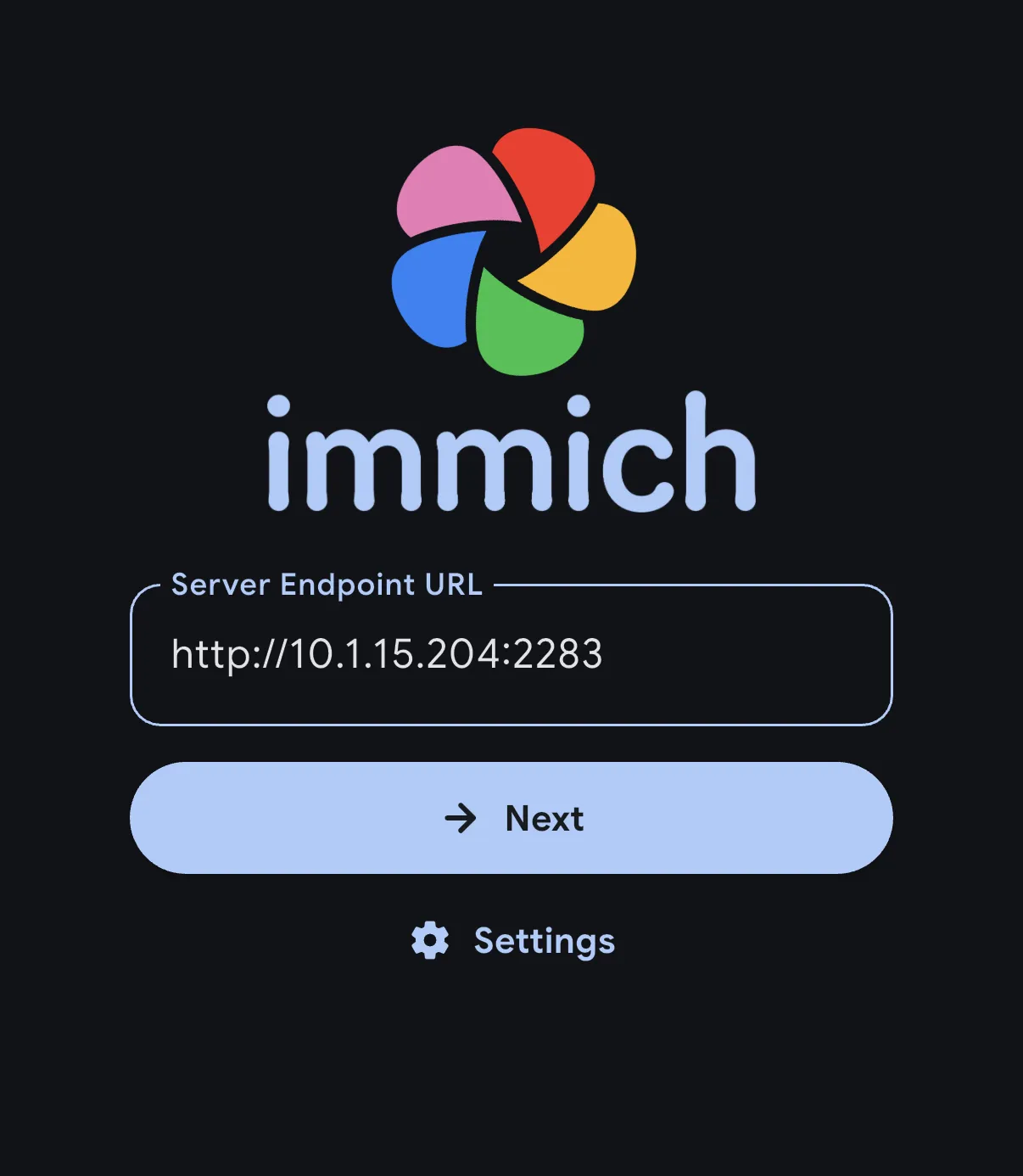
            <p className="step-intro">Öffne die Immich-App. Sie fragt zuerst, mit welchem Server du dich verbinden willst.</p>
            <ol className="click-list"><li><span className="click-num">1</span><span>Gib deine eigene Immich-Adresse bei <span className="key">Server Endpoint URL</span> ein.</span></li><li><span className="click-num">2</span><span>Tippe auf <span className="key">Next</span> und melde dich mit deinem <strong>Immich-Konto</strong> an.</span></li></ol>
            <div className="micro-note"><PhotoGuideIcon name="icon10" /><span>Die Adresse im Bild ist nur ein Beispiel. Verwende die Adresse, mit der du deinen Foto-Server im Browser öffnest.</span></div>

            <PhotoGuideDetails>
              <PhotoGuideSummary>Woher bekomme ich Adresse und Konto?</PhotoGuideSummary>
              <p>Von der Person, die deinen Foto-Server eingerichtet hat. Wenn ihn bereits ein kombify-Setup betreibt, öffne den Foto-Dienst in deinem Node Hub. Dein Immich-Konto ist nicht automatisch dein kombify-Konto.</p>
            </PhotoGuideDetails>

            <div className="step-check"><PhotoGuideIcon name="icon11" /> Als Nächstes siehst du deine Foto-Übersicht.</div>
          </div>

          <div className="panel-visual">
            <span className="screenshot-tag"><PhotoGuideIcon name="icon12" /> HERSTELLER-SCREENSHOT</span>

            <PhotoGuideFigure className="screen-figure" data-asset="login">
              <div className="screen-image"><img alt="Erster App-Start" decoding="async" height="1000" referrerPolicy="no-referrer" src="https://docs.immich.app/assets/images/sign-in-phone-92be8a8eab0f72d121e8b62e6f69df17.webp" width="870" /><span className="annotation login-url" data-n="1" /><span className="annotation login-next" data-n="2" /><a className="image-fallback" href="https://docs.immich.app/assets/images/sign-in-phone-92be8a8eab0f72d121e8b62e6f69df17.webp" rel="noopener noreferrer" target="_blank"><PhotoGuideIcon name="icon6" /> Hersteller-Screenshot öffnen<span>Zum Laden ist eine Internetverbindung nötig.</span></a><button aria-label="Screenshot vergrößern: Erster App-Start" className="zoom-button" data-zoom="login" type="button"><PhotoGuideIcon name="icon13" /></button></div><PhotoGuideFigcaption>Erster App-Start · <a className="" href="https://docs.immich.app/features/mobile-app/" rel="noopener noreferrer" target="_blank">Immich <PhotoGuideIcon name="icon6" /></a></PhotoGuideFigcaption>
            </PhotoGuideFigure>
          </div>
        </PhotoGuideArticle>

        <PhotoGuideArticle aria-labelledby="kpg-tab-1" className="guide-panel" hidden={true} id="kpg-panel-1" role="tabpanel">
          <div className="panel-copy">
            <div className="step-kicker">SCHRITT 02 / 04</div>
            <h3>Wähle, welche Fotos<br />hochgeladen werden.</h3>
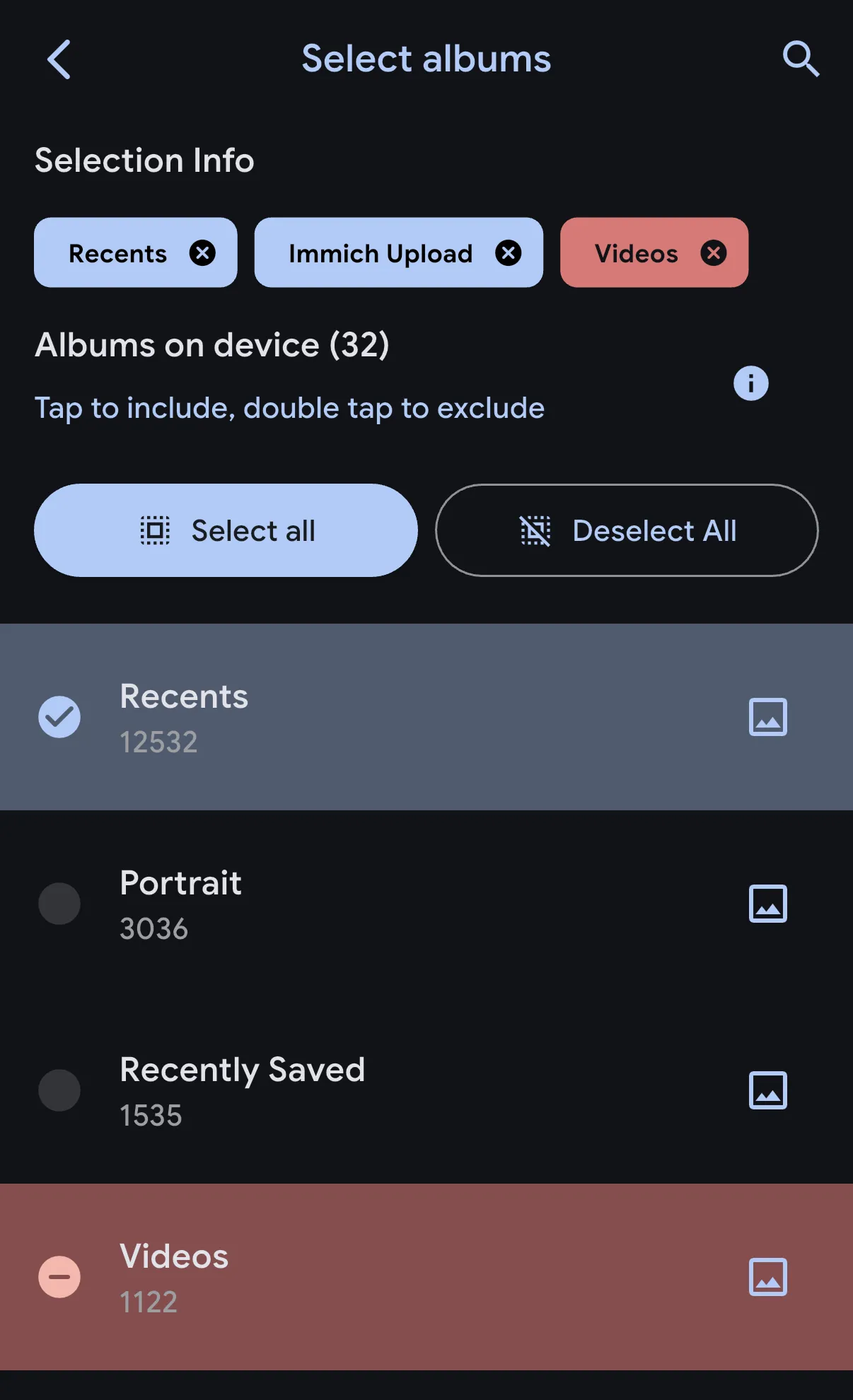
            <p className="step-intro">Für den ersten Test reicht ein kleines Album mit einem Foto, auf das du verzichten kannst.</p>
            <ol className="click-list"><li><span className="click-num">1</span><span>Öffne das <strong>Wolkensymbol</strong> oben rechts. Tippe unter <span className="key">Backup Albums</span> auf <span className="key">Select</span>.</span></li><li><span className="click-num">2</span><span>Wähle dein Testalbum aus. Das Bild markiert als Beispiel <span className="key">Recents</span>.</span></li><li><span className="click-num">3</span><span>Kehre mit dem Zurück-Pfeil zur Backup-Ansicht zurück.</span></li></ol>
            <div className="micro-note"><PhotoGuideIcon name="icon10" /><span>Erlaube der App Zugriff auf die gewünschten Fotos. Bei eingeschränktem Fotozugriff sieht die App nur die Bilder, die du mit ihr geteilt hast.</span></div>

            <PhotoGuideDetails>
              <PhotoGuideSummary>Später alle neuen Fotos einbeziehen?</PhotoGuideSummary>
              <p>Wähle das Album, in dem deine neuen Bilder landen. Prüfe seine Größe, bevor du den Upload einschaltest. Ein großes Album braucht länger.</p>
            </PhotoGuideDetails>

            <div className="step-check"><PhotoGuideIcon name="icon11" /> Die Backup-Ansicht zeigt dein ausgewähltes Album.</div>
          </div>

          <div className="panel-visual">
            <span className="screenshot-tag"><PhotoGuideIcon name="icon12" /> HERSTELLER-SCREENSHOT</span>

            <PhotoGuideFigure className="screen-figure portrait" data-asset="albums">
              <div className="screen-image"><img alt="Album auswählen" decoding="async" height="1000" referrerPolicy="no-referrer" src="https://docs.immich.app/assets/images/backup-album-selection-198b47e0b562cb00dcc5fbf0280bf6da.webp" width="609" /><span className="annotation album-mark" data-n="2" /><a className="image-fallback" href="https://docs.immich.app/assets/images/backup-album-selection-198b47e0b562cb00dcc5fbf0280bf6da.webp" rel="noopener noreferrer" target="_blank"><PhotoGuideIcon name="icon6" /> Hersteller-Screenshot öffnen<span>Zum Laden ist eine Internetverbindung nötig.</span></a><button aria-label="Screenshot vergrößern: Album auswählen" className="zoom-button" data-zoom="albums" type="button"><PhotoGuideIcon name="icon13" /></button></div><PhotoGuideFigcaption>Album auswählen · <a className="" href="https://docs.immich.app/features/mobile-app/" rel="noopener noreferrer" target="_blank">Immich <PhotoGuideIcon name="icon6" /></a></PhotoGuideFigcaption>
            </PhotoGuideFigure>
          </div>
        </PhotoGuideArticle>

        <PhotoGuideArticle aria-labelledby="kpg-tab-2" className="guide-panel" hidden={true} id="kpg-panel-2" role="tabpanel">
          <div className="panel-copy">
            <div className="step-kicker">SCHRITT 03 / 04</div>
            <h3>Schalte den<br />Upload ein.</h3>
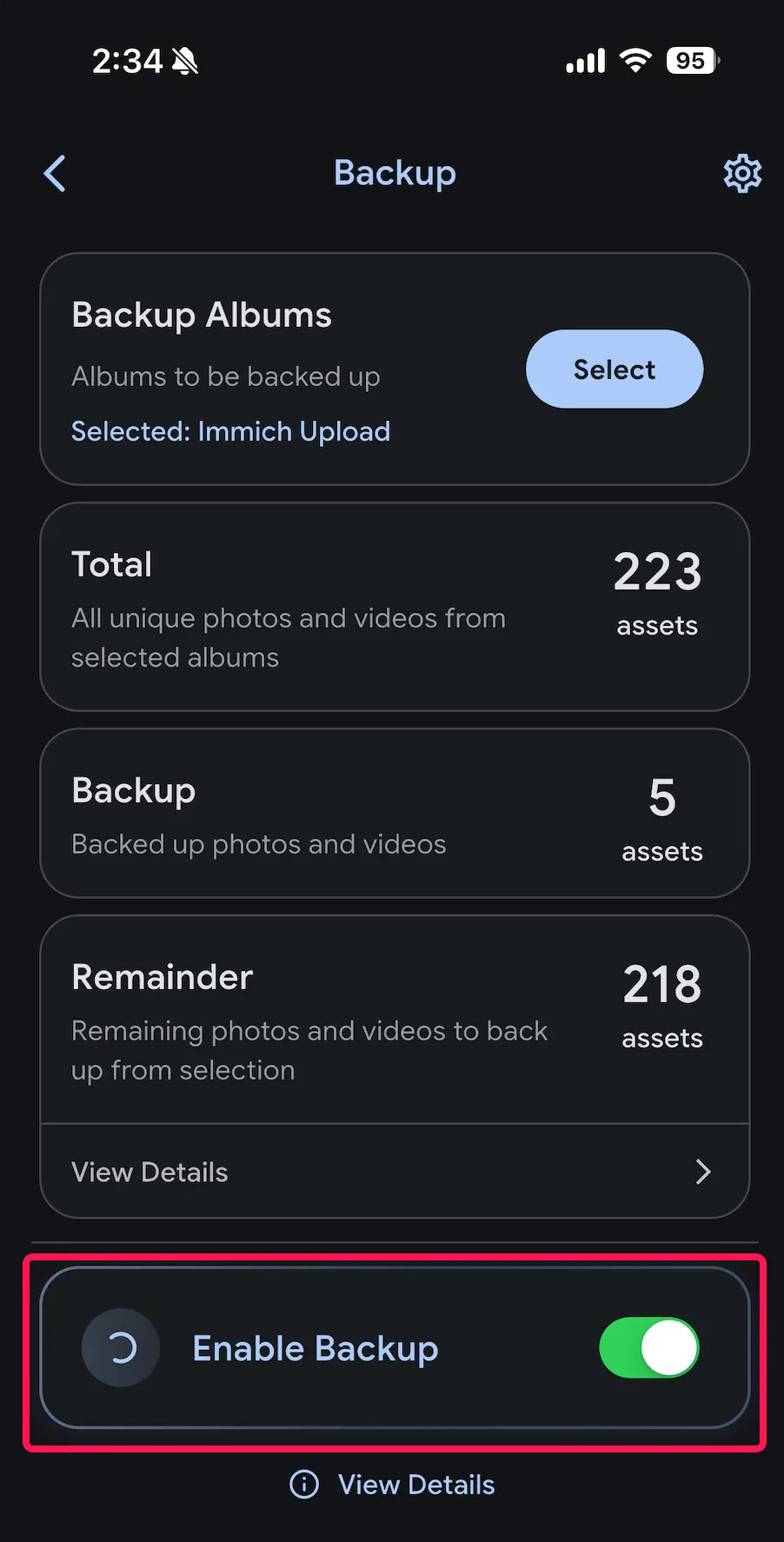
            <p className="step-intro">Bleib für den ersten Upload im WLAN und lass die App geöffnet.</p>
            <ol className="click-list"><li><span className="click-num">1</span><span>Scrolle in der Backup-Ansicht nach unten.</span></li><li><span className="click-num">2</span><span>Schalte <span className="key">Enable Backup</span> ein. Die App lädt die Dateien deines ausgewählten Albums hoch.</span></li><li><span className="click-num">3</span><span>Verfolge den Fortschritt unter <span className="key">Remainder</span>, das die noch hochzuladenden Dateien zählt.</span></li></ol>
            <div className="micro-note"><PhotoGuideIcon name="icon14" /><span>Standardmäßig lädt Immich nur im WLAN hoch. Das Zahnrad in den Backup-Einstellungen enthält die Optionen für mobile Daten.</span></div>

            <PhotoGuideDetails>
              <PhotoGuideSummary>Hochladen, während die App geschlossen ist?</PhotoGuideSummary>
              <p>Schalte in iOS die Hintergrundaktualisierung für Immich ein. iOS entscheidet, wann die App im Hintergrund laufen darf, deshalb ist ein sofortiger Upload nicht garantiert. <a data-reveal="kpg-background" href="#kpg-help">Zu den Schritten</a>.</p>
            </PhotoGuideDetails>

            <div className="step-check"><PhotoGuideIcon name="icon11" /> Für dein Testalbum sind keine Uploads mehr übrig.</div>
          </div>

          <div className="panel-visual">
            <span className="screenshot-tag"><PhotoGuideIcon name="icon12" /> HERSTELLER-SCREENSHOT</span>

            <PhotoGuideFigure className="screen-figure tall" data-asset="enable">
              <div className="screen-image"><img alt="Backup aktivieren" decoding="async" height="1000" referrerPolicy="no-referrer" src="https://docs.immich.app/assets/images/enable-backup-button-590dec9774e09ecc6ec6f1ddeda37a3c.webp" width="508" /><span className="annotation enable-mark" data-n="2" /><a className="image-fallback" href="https://docs.immich.app/assets/images/enable-backup-button-590dec9774e09ecc6ec6f1ddeda37a3c.webp" rel="noopener noreferrer" target="_blank"><PhotoGuideIcon name="icon6" /> Hersteller-Screenshot öffnen<span>Zum Laden ist eine Internetverbindung nötig.</span></a><button aria-label="Screenshot vergrößern: Backup aktivieren" className="zoom-button" data-zoom="enable" type="button"><PhotoGuideIcon name="icon13" /></button></div><PhotoGuideFigcaption>Backup aktivieren · <a className="" href="https://docs.immich.app/features/mobile-app/" rel="noopener noreferrer" target="_blank">Immich <PhotoGuideIcon name="icon6" /></a></PhotoGuideFigcaption>
            </PhotoGuideFigure>
          </div>
        </PhotoGuideArticle>

        <PhotoGuideArticle aria-labelledby="kpg-tab-3" className="guide-panel" hidden={true} id="kpg-panel-3" role="tabpanel">
          <div className="panel-copy">
            <div className="step-kicker">SCHRITT 04 / 04</div>
            <h3>Ist dein Foto<br />wirklich angekommen?</h3>
            <p className="step-intro">Öffne deine Immich-Adresse in einem Browser auf einem zweiten Gerät und melde dich mit demselben Konto an.</p>
            <div className="verify-list"><label><input id="kpg-verify-0" type="checkbox" /><span>Ich sehe mein Testfoto in der Foto-Übersicht.</span></label><label><input id="kpg-verify-1" type="checkbox" /><span>Das Foto öffnet sich in der Vollansicht.</span></label><label><input id="kpg-verify-2" type="checkbox" /><span>Die App zeigt keine Uploads mehr für das Testalbum.</span></label></div>
            <div className="done-message" hidden={true} id="kpg-done-message">Deine Bestätigung ist gespeichert. Dein erster Upload ist geprüft.</div>
            <div className="micro-note"><PhotoGuideIcon name="icon10" /><span>Hake nur ab, was du selbst geprüft hast. Diese Anleitung liest deinen Foto-Server nicht aus.</span></div>
            <div className="step-check"><PhotoGuideIcon name="icon11" /> Jetzt kannst du weitere Alben hinzufügen.</div>
          </div>

          <div className="panel-visual verify-visual">
            <span className="screenshot-tag">SCHEMATISCHE PRÜFUNG</span>

            <div className="flow-device">
              <div className="flow-node">
                <PhotoGuideIcon name="icon0" />
              </div>

              <span className="flow-arrow">
                <PhotoGuideIcon name="icon5" />
              </span>

              <div className="flow-node">
                <PhotoGuideIcon name="icon15" />

                <span className="check-stamp">
                  <PhotoGuideIcon name="icon4" />
                </span>
              </div>
            </div>

            <div className="flow-labels"><span>Dein iPhone</span><span>Dein Foto-Server</span></div>
            <div className="flow-caption">Ein Foto. Auf beiden Geräten.</div>
            <div className="flow-sub">Prüfe im Browser, nicht nur in der App auf deinem Handy.</div>
          </div>
        </PhotoGuideArticle>

        <div className="wizard-bottom">
          <div className="progress-note">
            <span id="kpg-progress-label">0 von 4 Schritten erledigt</span>

            <div aria-hidden="true" className="progress-meter">
              <span />

              <span />

              <span />

              <span />
            </div>
          </div>

          <button className="prev" disabled={true} id="kpg-prev" type="button"><PhotoGuideIcon name="icon16" /> Zurück</button><button className="next" id="kpg-next" type="button"><span>Erledigt · weiter</span><PhotoGuideIcon name="icon5" /></button>
        </div>
      </div>

      <p className="provenance-inline">Referenzbilder von Immich · englische Menüs · keine kombify-Testaufnahmen. <a data-reveal="kpg-sources-detail" href="#kpg-sources">Bildquellen und Datum</a></p>
    </section>

    <PhotoGuideAside aria-label="Wichtiger Hinweis zu Backups" className="warning">
      <PhotoGuideIcon name="icon17" />

      <div>
        <PhotoGuideStrong>Deine Fotos sind hochgeladen. Das ist noch kein Backup.</PhotoGuideStrong>
        <p>Sichere die Foto-Dateien <em>und</em> die Immich-Datenbank zusätzlich an einem separaten Ort. <a data-open="kpg-backup-dialog" href="#kpg-more">Sieh, was du sichern solltest</a>. Behalte vorerst deine Originale.</p>
      </div>
    </PhotoGuideAside>

    <section aria-labelledby="kpg-more-title" className="more-section" id="kpg-more">
      <div className="section-top">
        <h2 id="kpg-more-title">Wie es weitergeht.</h2>
      </div>

      <div className="more-grid"><button className="more-card" data-open="kpg-backup-dialog" type="button"><span className="more-icon green"><PhotoGuideIcon name="icon17" /></span><span><strong>Deine Fotos weiter schützen</strong><small>Was in ein vollständiges Backup gehört.</small></span><PhotoGuideIcon name="icon5" /></button><button className="more-card" data-open="kpg-ai-dialog" type="button"><span className="more-icon"><PhotoGuideIcon name="icon18" /></span><span><strong>Mit oder ohne KI nutzen</strong><small>Entscheide über Foto-Suche und Gesichtserkennung.</small></span><PhotoGuideIcon name="icon5" /></button></div>
    </section>

    <section aria-labelledby="kpg-faq-title" className="faq-section" id="kpg-help">
      <h2 id="kpg-faq-title">Du kommst nicht weiter?</h2>

      <PhotoGuideDetails className="faq" id="kpg-no-server">
        <PhotoGuideSummary>Ich habe noch keinen Immich-Server.</PhotoGuideSummary>
        <div className="answer">Die App verbindet sich mit einer bestehenden Immich-Installation. Du kannst den Foto-Dienst mit einem kombify StackKit bereitstellen oder den Server manuell einrichten. <a className="" href="/de/guides/stackkits/use-cases/photos">Mit kombify starten <PhotoGuideIcon name="icon6" /></a> · <a className="" href="https://docs.immich.app/install/docker-compose/" rel="noopener noreferrer" target="_blank">Offizielle manuelle Installation <PhotoGuideIcon name="icon6" /></a>.</div>
      </PhotoGuideDetails>

      <PhotoGuideDetails className="faq">
        <PhotoGuideSummary>Meine Foto-Adresse lässt sich nicht öffnen.</PhotoGuideSummary>
        <div className="answer">Teste dieselbe Adresse zuerst in einem Browser. Läuft dein Server nur in deinem Heimnetzwerk, verbinde dein Handy mit diesem WLAN oder mit dem privaten Zugang, den du eingerichtet hast. Prüfe die Schreibweise und ob der Server erreichbar ist. Umgehe keine Zertifikatswarnungen. <a className="" href="https://docs.immich.app/administration/reverse-proxy/" rel="noopener noreferrer" target="_blank">Hinweise für den Betreiber <PhotoGuideIcon name="icon6" /></a>.</div>
      </PhotoGuideDetails>

      <PhotoGuideDetails className="faq" id="kpg-background">
        <PhotoGuideSummary>Fotos werden nur hochgeladen, solange die App geöffnet ist.</PhotoGuideSummary>
        <div className="answer">Öffne auf dem iPhone <strong>Settings → General → Background App Refresh</strong>. Erlaube die Funktion und schalte sie für Immich ein. iOS entscheidet weiterhin, wann und wie lange Hintergrundaufgaben laufen. Lass die App beim ersten großen Upload geöffnet. <a className="" href="https://docs.immich.app/features/mobile-backup/#ios" rel="noopener noreferrer" target="_blank">Hersteller-Anleitung <PhotoGuideIcon name="icon6" /></a>.</div>
      </PhotoGuideDetails>

      <PhotoGuideDetails className="faq">
        <PhotoGuideSummary>Meine App sieht anders aus als die Bilder.</PhotoGuideSummary>
        <div className="answer">Die Bilder stammen aus der englischen Immich-Dokumentation. Sprache, Betriebssystem und App-Version verändern, was du siehst. Prüfe, welche Server- und App-Versionen zusammengehören, statt den Server blind zu aktualisieren. <a className="" href="https://docs.immich.app/features/mobile-app/" rel="noopener noreferrer" target="_blank">Aktuelle App-Anleitung <PhotoGuideIcon name="icon6" /></a> · <a className="" href="https://docs.immich.app/install/upgrading/" rel="noopener noreferrer" target="_blank">Hinweise zum Upgrade <PhotoGuideIcon name="icon6" /></a>.</div>
      </PhotoGuideDetails>
    </section>

    <PhotoGuideFooter className="footline">
      <div className="attribution"><strong>Immich ist die Foto-App. kombify hilft dir, sie bereitzustellen und zu nutzen.</strong><br />kombify stellt Immich nicht her. <a className="" href="https://immich.app" rel="noopener noreferrer" target="_blank">Hersteller <PhotoGuideIcon name="icon6" /></a> · <a className="" href="https://docs.immich.app" rel="noopener noreferrer" target="_blank">Dokumentation <PhotoGuideIcon name="icon6" /></a> · <a className="" href="https://github.com/immich-app/immich/blob/main/LICENSE" rel="noopener noreferrer" target="_blank">AGPLv3-Lizenz <PhotoGuideIcon name="icon6" /></a></div><button className="reset" id="kpg-reset-progress" type="button">Fortschritt zurücksetzen</button>
    </PhotoGuideFooter>

    <section className="source-section" id="kpg-sources">
      <PhotoGuideDetails id="kpg-sources-detail">
        <PhotoGuideSummary>Bildquellen, geprüfte Links und Datum</PhotoGuideSummary>

        <div className="source-content">
          <p><strong>Referenzbilder · 16. September 2026.</strong> Die Schrittbilder sind echte Referenzansichten aus der offiziellen Immich-Dokumentation. Sie sind keine nachgebauten App-Bildschirme und keine Ergebnisse eines kombify-Rollouts. Diese Anleitung hat die dünnen violetten Markierungen ergänzt.</p>
          <p>Die Hersteller-Bilder nennen ihre genaue App-Version nicht. Sprache, Betriebssystem und App-Version können abweichen. Aufnahmen aus kombify-Rollout-Tests sind noch nicht enthalten.</p>
          <p>Dein Fortschritt wird nur in diesem Browser gespeichert. Die Anleitung verbindet keine Konten, fragt nach keinen Passwörtern und führt keine Uploads aus. Die eingebetteten Hersteller-Bilder brauchen eine Internetverbindung.</p>
          <div className="source-links"><a className="" href="https://docs.immich.app/features/mobile-app/" rel="noopener noreferrer" target="_blank">App und Einrichtung <PhotoGuideIcon name="icon6" /></a><a className="" href="https://docs.immich.app/features/mobile-backup/" rel="noopener noreferrer" target="_blank">Mobiler Upload <PhotoGuideIcon name="icon6" /></a><a className="" href="https://docs.immich.app/administration/backup-and-restore/" rel="noopener noreferrer" target="_blank">Backup und Wiederherstellung <PhotoGuideIcon name="icon6" /></a><a className="" href="https://docs.immich.app/features/searching/" rel="noopener noreferrer" target="_blank">KI-Suche <PhotoGuideIcon name="icon6" /></a><a className="" href="https://docs.immich.app/assets/images/sign-in-phone-92be8a8eab0f72d121e8b62e6f69df17.webp" rel="noopener noreferrer" target="_blank">Bild: App-Start <PhotoGuideIcon name="icon6" /></a><a className="" href="https://docs.immich.app/assets/images/backup-album-selection-198b47e0b562cb00dcc5fbf0280bf6da.webp" rel="noopener noreferrer" target="_blank">Bild: Albumauswahl <PhotoGuideIcon name="icon6" /></a><a className="" href="https://docs.immich.app/assets/images/enable-backup-button-590dec9774e09ecc6ec6f1ddeda37a3c.webp" rel="noopener noreferrer" target="_blank">Bild: Backup <PhotoGuideIcon name="icon6" /></a></div>
        </div>
      </PhotoGuideDetails>

      <div className="dim">Anleitung von kombify · Bilder und Marken gehören ihren jeweiligen Inhabern.</div>
    </section>
  </div>

  <PhotoGuideDialog aria-labelledby="kpg-backup-title" id="kpg-backup-dialog">
    <div className="dialog-header">
      <h2 id="kpg-backup-title">Was gehört in dein Backup?</h2><button aria-label="Schließen" className="dialog-close" data-close="" type="button"><PhotoGuideIcon name="icon19" /></button>
    </div>

    <div className="dialog-body">
      <p>Ein Handy-Upload schützt dich nicht vor einem Hardware-Ausfall oder Datenverlust auf deinem Foto-Server.</p>
      <ol className="simple-steps"><li><strong>Sichere die Foto- und Videodateien.</strong> Nicht nur die Vorschaubilder.</li><li><strong>Sichere auch die Immich-Datenbank.</strong> Sie enthält die Albumzuordnungen und weitere Metadaten. Der automatische Datenbank-Export enthält keine Fotos.</li><li><strong>Bewahre die Kopie getrennt auf und teste eine Wiederherstellung.</strong> Ein anderes Verzeichnis auf derselben Festplatte reicht nicht.</li></ol><a className="primary-link" href="/de/guides/stackkits/back-up-and-restore">Mit kombify StackKits sichern <PhotoGuideIcon name="icon6" /></a>
      <p className="fineprint">Betreibst du Immich selbst? <a className="" href="https://docs.immich.app/administration/backup-and-restore/" rel="noopener noreferrer" target="_blank">Offizielle Immich-Backup-Anleitung <PhotoGuideIcon name="icon6" /></a>. Die Hersteller-Anleitung öffnet sich in einem neuen Tab.</p>
    </div>
  </PhotoGuideDialog>

  <PhotoGuideDialog aria-labelledby="kpg-ai-title" id="kpg-ai-dialog">
    <div className="dialog-header">
      <h2 id="kpg-ai-title">Deine Fotos, mit oder ohne KI.</h2><button aria-label="Schließen" className="dialog-close" data-close="" type="button"><PhotoGuideIcon name="icon19" /></button>
    </div>

    <div className="dialog-body">
      <p><strong>Ohne KI-Analyse.</strong> Diese Anleitung behandelt Uploads, die Foto-Ansicht und Alben. Sie funktionieren ohne intelligente Suche und Gesichtserkennung.</p>
      <p><strong>Mit KI-Analyse.</strong> Immich kann zum Beispiel Bilder anhand von Suchbegriffen finden und Personen gruppieren. Diese Funktionen konfigurierst du in der Server-Administration.</p>
      <p>Deine Installation entscheidet, ob und wo diese Verarbeitung läuft. Das Abschalten neuer Analysen löscht vorhandene Analyseergebnisse nicht.</p><a className="primary-link" href="https://docs.immich.app/features/searching/" rel="noopener noreferrer" target="_blank">Suche und Optionen in Immich <PhotoGuideIcon name="icon6" /></a>
      <p className="fineprint"><a className="" href="https://docs.immich.app/features/facial-recognition/" rel="noopener noreferrer" target="_blank">Gesichtserkennung <PhotoGuideIcon name="icon6" /></a> · <a className="" href="https://docs.immich.app/FAQ/#how-can-i-disable-machine-learning" rel="noopener noreferrer" target="_blank">KI abschalten <PhotoGuideIcon name="icon6" /></a>. Diese Anleitung ändert keine Einstellungen.</p>
    </div>
  </PhotoGuideDialog>

  <PhotoGuideDialog aria-labelledby="kpg-zoom-title" className="zoom-dialog" id="kpg-zoom-dialog">
    <div className="dialog-header">
      <h2 id="kpg-zoom-title">Hersteller-Screenshot</h2><button aria-label="Bild schließen" className="dialog-close" data-close="" type="button"><PhotoGuideIcon name="icon19" /></button>
    </div>

    <div className="zoom-content"><img alt="" id="kpg-zoom-image" /><a href="https://docs.immich.app" id="kpg-zoom-source" rel="noopener noreferrer" target="_blank">Das Original beim Hersteller öffnen <PhotoGuideIcon name="icon6" /></a></div>
  </PhotoGuideDialog>

  <div className="toast" hidden={true} id="kpg-toast" role="status" />
</PhotoGuide>


This documentation is built and hosted on [Mintlify](https://mintlify.com), a developer documentation platform.