> ## Documentation Index
> Fetch the complete documentation index at: https://docs.kombify.io/llms.txt
> Use this file to discover all available pages before exploring further.

# Back up photos from your phone

> Connect your phone to your photo server, from the first app start to your first uploaded photo.

export const PhotoGuideSummary = ({children, ...props}) => {
  const Tag = "summary";
  return <Tag {...props}>{children}</Tag>;
};

export const PhotoGuideStrong = ({children, ...props}) => {
  const Tag = "strong";
  return <Tag {...props}>{children}</Tag>;
};

export const PhotoGuideFooter = ({children, ...props}) => {
  const Tag = "footer";
  return <Tag {...props}>{children}</Tag>;
};

export const PhotoGuideFigure = ({children, ...props}) => {
  const Tag = "figure";
  return <Tag {...props}>{children}</Tag>;
};

export const PhotoGuideFigcaption = ({children, ...props}) => {
  const Tag = "figcaption";
  return <Tag {...props}>{children}</Tag>;
};

export const PhotoGuideDialog = ({children, ...props}) => {
  const Tag = "dialog";
  return <Tag {...props}>{children}</Tag>;
};

export const PhotoGuideDetails = ({children, ...props}) => {
  const Tag = "details";
  return <Tag {...props}>{children}</Tag>;
};

export const PhotoGuideAside = ({children, ...props}) => {
  const Tag = "aside";
  return <Tag {...props}>{children}</Tag>;
};

export const PhotoGuideArticle = ({children, ...props}) => {
  const Tag = "article";
  return <Tag {...props}>{children}</Tag>;
};

export const PhotoGuideIcon = ({name}) => {
  const icons = {
    icon0: <svg aria-hidden="true" className="ico" fill="none" stroke="currentColor" strokeLinecap="round" strokeLinejoin="round" strokeWidth="1.7" viewBox="0 0 24 24"><rect height="20" rx="3" width="12" x="6" y="2"></rect><path d="M10 5h4M11 19h2"></path></svg>,
    icon1: <svg aria-hidden="true" className="ico" fill="none" stroke="currentColor" strokeLinecap="round" strokeLinejoin="round" strokeWidth="1.7" viewBox="0 0 24 24"><rect height="7" rx="1.5" width="7" x="3" y="3"></rect><rect height="7" rx="1.5" width="7" x="14" y="3"></rect><rect height="7" rx="1.5" width="7" x="3" y="14"></rect><rect height="7" rx="1.5" width="7" x="14" y="14"></rect></svg>,
    icon2: <svg aria-hidden="true" className="ico" fill="none" stroke="currentColor" strokeLinecap="round" strokeLinejoin="round" strokeWidth="1.7" viewBox="0 0 24 24"><path d="M12 5v15M3 4c4-1 6 0 9 1 3-1 5-2 9-1v15c-4-1-6 0-9 1-3-1-5-2-9-1Z"></path></svg>,
    icon3: <svg aria-hidden="true" className="ico" fill="none" stroke="currentColor" strokeLinecap="round" strokeLinejoin="round" strokeWidth="1.7" viewBox="0 0 24 24"><path d="M6 8V3h12v5M6 17H3V8h18v9h-3M6 14h12v7H6Z"></path><path d="M17 11h.01"></path></svg>,
    icon4: <svg aria-hidden="true" className="ico" fill="none" stroke="currentColor" strokeLinecap="round" strokeLinejoin="round" strokeWidth="1.7" viewBox="0 0 24 24"><path d="m5 12 4 4L19 6"></path></svg>,
    icon5: <svg aria-hidden="true" className="ico" fill="none" stroke="currentColor" strokeLinecap="round" strokeLinejoin="round" strokeWidth="1.7" viewBox="0 0 24 24"><path d="M5 12h14M13 6l6 6-6 6"></path></svg>,
    icon6: <svg aria-hidden="true" className="ico" fill="none" stroke="currentColor" strokeLinecap="round" strokeLinejoin="round" strokeWidth="1.7" viewBox="0 0 24 24"><path d="M14 4h6v6m0-6L10 14"></path><path d="M10 4H5a1 1 0 0 0-1 1v14a1 1 0 0 0 1 1h14a1 1 0 0 0 1-1v-5"></path></svg>,
    icon7: <svg aria-hidden="true" className="ico" fill="none" stroke="currentColor" strokeLinecap="round" strokeLinejoin="round" strokeWidth="1.7" viewBox="0 0 24 24"><path d="M16.7 1.8c0 2.1-1.7 4.4-3.7 4.2-.4-2.1 1.8-4.3 3.7-4.2ZM20.4 17.3c-.5 1.2-.8 1.7-1.5 2.7-1 1.5-2.4 3.3-4.2 3.3-1.6 0-2-1-4.1-.9-2.1 0-2.5 1-4.2.9-1.8-.1-3.1-1.7-4.1-3.2C-.5 15.9-.7 10.4 1 7.6c1.2-2 3.1-3.1 4.9-3.1 1.9 0 3.1 1 4.7 1 1.5 0 2.5-1 4.7-1 1.6 0 3.3.9 4.5 2.3-4 2.2-3.3 8 0 10.5Z" fill="currentColor" stroke="none" transform="translate(2 0) scale(.87)"></path></svg>,
    icon8: <svg aria-hidden="true" className="ico" fill="none" stroke="currentColor" strokeLinecap="round" strokeLinejoin="round" strokeWidth="1.7" viewBox="0 0 24 24"><path d="M5 12a7 7 0 0 1 14 0v6H5Zm2-6L5 3m12 3 2-3M2 12v5m20-5v5M8 18v4m8-4v4"></path><path d="M8.5 9h.01M15.5 9h.01"></path></svg>,
    icon9: <svg aria-hidden="true" className="ico" fill="none" stroke="currentColor" strokeLinecap="round" strokeLinejoin="round" strokeWidth="1.7" viewBox="0 0 24 24"><rect height="7" rx="2" width="18" x="3" y="3"></rect><rect height="7" rx="2" width="18" x="3" y="14"></rect><path d="M7 6.5h.01M7 17.5h.01M16 6.5h2M16 17.5h2"></path></svg>,
    icon10: <svg aria-hidden="true" className="ico" fill="none" stroke="currentColor" strokeLinecap="round" strokeLinejoin="round" strokeWidth="1.7" viewBox="0 0 24 24"><circle cx="12" cy="12" r="9"></circle><path d="M12 11v5M12 7h.01"></path></svg>,
    icon11: <svg aria-hidden="true" className="ico" fill="none" stroke="currentColor" strokeLinecap="round" strokeLinejoin="round" strokeWidth="1.7" viewBox="0 0 24 24"><circle cx="12" cy="12" r="9"></circle><path d="m8 12 3 3 5-6"></path></svg>,
    icon12: <svg aria-hidden="true" className="ico" fill="none" stroke="currentColor" strokeLinecap="round" strokeLinejoin="round" strokeWidth="1.7" viewBox="0 0 24 24"><path d="M3 7h4l2-3h6l2 3h4v13H3Z"></path><circle cx="12" cy="13" r="4"></circle></svg>,
    icon13: <svg aria-hidden="true" className="ico" fill="none" stroke="currentColor" strokeLinecap="round" strokeLinejoin="round" strokeWidth="1.7" viewBox="0 0 24 24"><circle cx="10.5" cy="10.5" r="6.5"></circle><path d="m16 16 5 5M7 10.5h7M10.5 7v7"></path></svg>,
    icon14: <svg aria-hidden="true" className="ico" fill="none" stroke="currentColor" strokeLinecap="round" strokeLinejoin="round" strokeWidth="1.7" viewBox="0 0 24 24"><path d="M2 8a16 16 0 0 1 20 0M5 12a11 11 0 0 1 14 0M8.5 16a5 5 0 0 1 7 0M12 20h.01"></path></svg>,
    icon15: <svg aria-hidden="true" className="ico" fill="none" stroke="currentColor" strokeLinecap="round" strokeLinejoin="round" strokeWidth="1.7" viewBox="0 0 24 24"><rect height="14" rx="2" width="20" x="2" y="3"></rect><path d="M8 22h8M12 17v5"></path></svg>,
    icon16: <svg aria-hidden="true" className="ico" fill="none" stroke="currentColor" strokeLinecap="round" strokeLinejoin="round" strokeWidth="1.7" viewBox="0 0 24 24"><path d="m15 5-7 7 7 7"></path></svg>,
    icon17: <svg aria-hidden="true" className="ico" fill="none" stroke="currentColor" strokeLinecap="round" strokeLinejoin="round" strokeWidth="1.7" viewBox="0 0 24 24"><path d="M12 3 3 7v6c0 5 9 9 9 9s9-4 9-9V7Z"></path><path d="m8 12 3 3 5-6"></path></svg>,
    icon18: <svg aria-hidden="true" className="ico" fill="none" stroke="currentColor" strokeLinecap="round" strokeLinejoin="round" strokeWidth="1.7" viewBox="0 0 24 24"><path d="m12 3 2.8 6.2L21 12l-6.2 2.8L12 21l-2.8-6.2L3 12l6.2-2.8Z"></path></svg>,
    icon19: <svg aria-hidden="true" className="ico" fill="none" stroke="currentColor" strokeLinecap="round" strokeLinejoin="round" strokeWidth="1.7" viewBox="0 0 24 24"><path d="m6 6 12 12M6 18 18 6"></path></svg>
  };
  return icons[name] || null;
};

export const PhotoGuide = ({children}) => {
  const rootRef = useRef(null);
  useEffect(() => {
    const root = rootRef.current;
    if (!root) return;
    const $ = (selector, scope = root) => scope.querySelector(selector);
    const $$ = (selector, scope = root) => Array.from(scope.querySelectorAll(selector));
    const byId = id => $('[id="' + id + '"]');
    const abort = new AbortController();
    const listen = (node, event, handler) => node && node.addEventListener(event, handler, {
      signal: abort.signal
    });
    const storageKey = 'kombify-photo-guide-v3';
    let current = 0;
    let completed = [false, false, false, false];
    let verified = [false, false, false];
    let toastTimer;
    try {
      const saved = JSON.parse(localStorage.getItem(storageKey) || 'null');
      if (Array.isArray(saved?.completed) && saved.completed.length === 4) completed = saved.completed.map(Boolean);
      if (Array.isArray(saved?.verified) && saved.verified.length === 3) verified = saved.verified.map(Boolean);
    } catch (_) {}
    if (!verified.every(Boolean)) completed[3] = false;
    const save = () => {
      try {
        localStorage.setItem(storageKey, JSON.stringify({
          completed,
          verified
        }));
      } catch (_) {}
    };
    const toast = text => {
      const node = $('#kpg-toast');
      node.textContent = text;
      node.hidden = false;
      clearTimeout(toastTimer);
      toastTimer = setTimeout(() => {
        node.hidden = true;
      }, 3800);
    };
    const updateProgress = () => {
      $('#kpg-progress-label').textContent = `${completed.filter(Boolean).length} of 4 steps done`;
      $$('.progress-meter span').forEach((node, i) => node.classList.toggle('done', completed[i]));
      $$('.step-tab').forEach((node, i) => {
        node.classList.toggle('done', completed[i]);
        $('.step-dot', node).textContent = completed[i] ? '✓' : String(i + 1);
      });
      $('#kpg-done-message').hidden = !completed[3];
    };
    const selectStep = (index, focus = false) => {
      current = Math.max(0, Math.min(3, index));
      $$('.step-tab').forEach((node, i) => {
        node.setAttribute('aria-selected', String(i === current));
        node.tabIndex = i === current ? 0 : -1;
      });
      $$('.guide-panel').forEach((node, i) => {
        node.hidden = i !== current;
      });
      $('#kpg-prev').disabled = current === 0;
      $('#kpg-next span').textContent = current === 3 ? completed[3] ? 'More topics' : 'Finish check' : 'Done · next';
      if (focus) $('[data-step="' + current + '"]').focus();
    };
    $$('[data-step]').forEach(node => listen(node, 'click', () => selectStep(Number(node.dataset.step))));
    listen($('.step-tabs'), 'keydown', event => {
      if (!['ArrowRight', 'ArrowLeft', 'Home', 'End'].includes(event.key)) return;
      event.preventDefault();
      selectStep(event.key === 'Home' ? 0 : event.key === 'End' ? 3 : (current + (event.key === 'ArrowRight' ? 1 : 3)) % 4, true);
    });
    listen($('#kpg-prev'), 'click', () => selectStep(current - 1));
    listen($('#kpg-next'), 'click', () => {
      if (current < 3) {
        completed[current] = true;
        save();
        updateProgress();
        selectStep(current + 1, true);
      } else if (completed[3]) {
        $('#kpg-more').scrollIntoView({
          block: 'start'
        });
        $('.more-card').focus({
          preventScroll: true
        });
      } else if (verified.every(Boolean)) {
        completed[3] = true;
        save();
        updateProgress();
        selectStep(3);
        toast('Your check is marked as done in this browser.');
      } else {
        toast('Check the three points on your photo server first.');
        $('#kpg-verify-' + verified.indexOf(false)).focus();
      }
    });
    $$('.verify-list input').forEach((node, i) => {
      node.checked = verified[i];
      listen(node, 'change', () => {
        verified[i] = node.checked;
        if (!verified.every(Boolean)) completed[3] = false;
        save();
        updateProgress();
        selectStep(current);
      });
    });
    listen($('#kpg-reset-progress'), 'click', () => {
      completed = [false, false, false, false];
      verified = [false, false, false];
      $$('.verify-list input').forEach(node => {
        node.checked = false;
      });
      save();
      updateProgress();
      selectStep(0);
      toast('Your progress in this browser was reset.');
    });
    listen($('#kpg-print'), 'click', () => window.print());
    const openDialog = id => {
      const dialog = byId(id);
      if (dialog && !dialog.open) dialog.showModal();
    };
    $$('[data-open]').forEach(node => listen(node, 'click', event => {
      event.preventDefault();
      openDialog(node.dataset.open);
    }));
    $$('[data-close]').forEach(node => listen(node, 'click', () => node.closest('dialog').close()));
    $$('dialog').forEach(dialog => listen(dialog, 'click', event => {
      if (event.target !== dialog) return;
      const rect = dialog.getBoundingClientRect();
      if (event.clientX < rect.left || event.clientX > rect.right || event.clientY < rect.top || event.clientY > rect.bottom) dialog.close();
    }));
    $$('[data-zoom]').forEach(node => listen(node, 'click', () => {
      const image = $('img', node.closest('figure'));
      $('#kpg-zoom-image').src = image.currentSrc || image.src;
      $('#kpg-zoom-image').alt = image.alt;
      $('#kpg-zoom-source').href = image.src;
      openDialog('kpg-zoom-dialog');
    }));
    $$('[data-reveal]').forEach(node => listen(node, 'click', () => {
      const details = byId(node.dataset.reveal);
      if (details) details.open = true;
    }));
    const checkImage = image => image.closest('.screen-figure').classList.toggle('image-unavailable', !image.complete || !image.naturalWidth);
    $$('.screen-image > img').forEach(image => {
      listen(image, 'load', () => checkImage(image));
      listen(image, 'error', () => checkImage(image));
      if (image.complete) checkImage(image);
    });
    const imageTimer = setTimeout(() => $$('.screen-image > img').forEach(checkImage), 7000);
    updateProgress();
    selectStep(0);
    return () => {
      abort.abort();
      clearTimeout(toastTimer);
      clearTimeout(imageTimer);
      $$('dialog[open]').forEach(dialog => dialog.close());
    };
  }, []);
  return <div className="kombify-photo-guide not-prose" lang="en" ref={rootRef}>{children}</div>;
};

<PhotoGuide>
  <div className="guide-content" id="kpg-photo-guide-content">
    <div className="page-top">
      <div>
        <div className="intro-meta"><span><PhotoGuideIcon name="icon0" /> iPhone, iPad & Android</span><span><PhotoGuideIcon name="icon1" /> 4 short steps</span><span><PhotoGuideIcon name="icon2" /> No prior knowledge needed</span></div>
      </div>

      <div className="page-tools">
        <button aria-label="Print guide" className="tool-button" id="kpg-print" type="button">
          <PhotoGuideIcon name="icon3" />
        </button>
      </div>
    </div>

    <div className="ready-strip"><strong>What you need</strong><span><PhotoGuideIcon name="icon4" /> A running Immich server</span><span><PhotoGuideIcon name="icon4" /> Your photo server address and account</span><a data-reveal="kpg-no-server" href="#kpg-help">Not set up yet? <PhotoGuideIcon name="icon5" /></a></div>

    <section aria-labelledby="kpg-apps-title" className="downloads" id="kpg-apps">
      <div className="section-top">
        <h2 id="kpg-apps-title">First, get the right app.</h2><a className="small-link" href="https://immich.app" rel="noopener noreferrer" target="_blank">Straight from Immich <PhotoGuideIcon name="icon6" /></a>
      </div>

      <div className="downloads-grid"><a className="download-card active" href="https://apps.apple.com/app/immich/id1613945652" rel="noopener noreferrer" target="_blank"><span className="platform-icon"><PhotoGuideIcon name="icon7" /></span><span className="download-text"><strong>iPhone & iPad</strong><small>Immich for iOS</small><span className="store-name">Open in the App Store <PhotoGuideIcon name="icon6" /></span></span></a><a className="download-card" href="https://play.google.com/store/apps/details?id=app.alextran.immich" rel="noopener noreferrer" target="_blank"><span className="platform-icon"><PhotoGuideIcon name="icon8" /></span><span className="download-text"><strong>Android</strong><small>Immich for Android</small><span className="store-name">Open in Google Play <PhotoGuideIcon name="icon6" /></span></span></a><a className="download-card" href="https://docs.immich.app/install/docker-compose/" rel="noopener noreferrer" target="_blank"><span className="platform-icon"><PhotoGuideIcon name="icon9" /></span><span className="download-text"><strong>No photo server yet?</strong><small>For the operator</small><span className="store-name">Set up a server <PhotoGuideIcon name="icon6" /></span></span></a></div>
      <p className="download-hint">The steps below use an iPhone or iPad. <a className="" href="https://docs.immich.app/features/mobile-backup/#android" rel="noopener noreferrer" target="_blank">Android notes <PhotoGuideIcon name="icon6" /></a> · The app alone does not replace a server.</p>
    </section>

    <section aria-labelledby="kpg-guide-title" className="guide-section" id="kpg-guide">
      <div className="guide-heading">
        <h2 id="kpg-guide-title">Connect step by step.</h2><span className="platform-label"><PhotoGuideIcon name="icon7" /> iPhone / iPad</span>
      </div>

      <div className="wizard">
        <div aria-label="Setup steps" className="step-tabs" role="tablist"><button aria-controls="kpg-panel-0" aria-selected="true" className="step-tab" data-step="0" id="kpg-tab-0" role="tab" tabIndex="0" type="button"><span className="step-dot">1</span><span>Connect</span></button><button aria-controls="kpg-panel-1" aria-selected="false" className="step-tab" data-step="1" id="kpg-tab-1" role="tab" tabIndex="-1" type="button"><span className="step-dot">2</span><span>Choose albums</span></button><button aria-controls="kpg-panel-2" aria-selected="false" className="step-tab" data-step="2" id="kpg-tab-2" role="tab" tabIndex="-1" type="button"><span className="step-dot">3</span><span>Start upload</span></button><button aria-controls="kpg-panel-3" aria-selected="false" className="step-tab" data-step="3" id="kpg-tab-3" role="tab" tabIndex="-1" type="button"><span className="step-dot">4</span><span>Check</span></button></div>

        <PhotoGuideArticle aria-labelledby="kpg-tab-0" className="guide-panel" id="kpg-panel-0" role="tabpanel">
          <div className="panel-copy">
            <div className="step-kicker">STEP 01 / 04</div>
            <h3>Enter your<br />photo address.</h3>
            <p className="step-intro">Open the Immich app. It first asks which server you want to connect to.</p>
            <ol className="click-list"><li><span className="click-num">1</span><span>Enter your own Immich address in <span className="key">Server Endpoint URL</span>.</span></li><li><span className="click-num">2</span><span>Tap <span className="key">Next</span> and sign in with your <strong>Immich account</strong>.</span></li></ol>
            <div className="micro-note"><PhotoGuideIcon name="icon10" /><span>The address in the picture is only an example. Use the address you open your photo server with in a browser.</span></div>

            <PhotoGuideDetails>
              <PhotoGuideSummary>Where do I get the address and account?</PhotoGuideSummary>
              <p>From the person who set up your photo server. If a kombify setup already runs it, open the photo service from your Node Hub. Your Immich account is not automatically your kombify account.</p>
            </PhotoGuideDetails>

            <div className="step-check"><PhotoGuideIcon name="icon11" /> Next, you see your photo overview.</div>
          </div>

          <div className="panel-visual">
            <span className="screenshot-tag"><PhotoGuideIcon name="icon12" /> VENDOR SCREENSHOT</span>

            <PhotoGuideFigure className="screen-figure" data-asset="login">
              <div className="screen-image"><img alt="First app start" decoding="async" height="1000" referrerPolicy="no-referrer" src="https://docs.immich.app/assets/images/sign-in-phone-92be8a8eab0f72d121e8b62e6f69df17.webp" width="870" /><span className="annotation login-url" data-n="1" /><span className="annotation login-next" data-n="2" /><a className="image-fallback" href="https://docs.immich.app/assets/images/sign-in-phone-92be8a8eab0f72d121e8b62e6f69df17.webp" rel="noopener noreferrer" target="_blank"><PhotoGuideIcon name="icon6" /> Open vendor screenshot<span>Loading it needs an internet connection.</span></a><button aria-label="Enlarge screenshot: First app start" className="zoom-button" data-zoom="login" type="button"><PhotoGuideIcon name="icon13" /></button></div><PhotoGuideFigcaption>First app start · <a className="" href="https://docs.immich.app/features/mobile-app/" rel="noopener noreferrer" target="_blank">Immich <PhotoGuideIcon name="icon6" /></a></PhotoGuideFigcaption>
            </PhotoGuideFigure>
          </div>
        </PhotoGuideArticle>

        <PhotoGuideArticle aria-labelledby="kpg-tab-1" className="guide-panel" hidden={true} id="kpg-panel-1" role="tabpanel">
          <div className="panel-copy">
            <div className="step-kicker">STEP 02 / 04</div>
            <h3>Choose which photos<br />to upload.</h3>
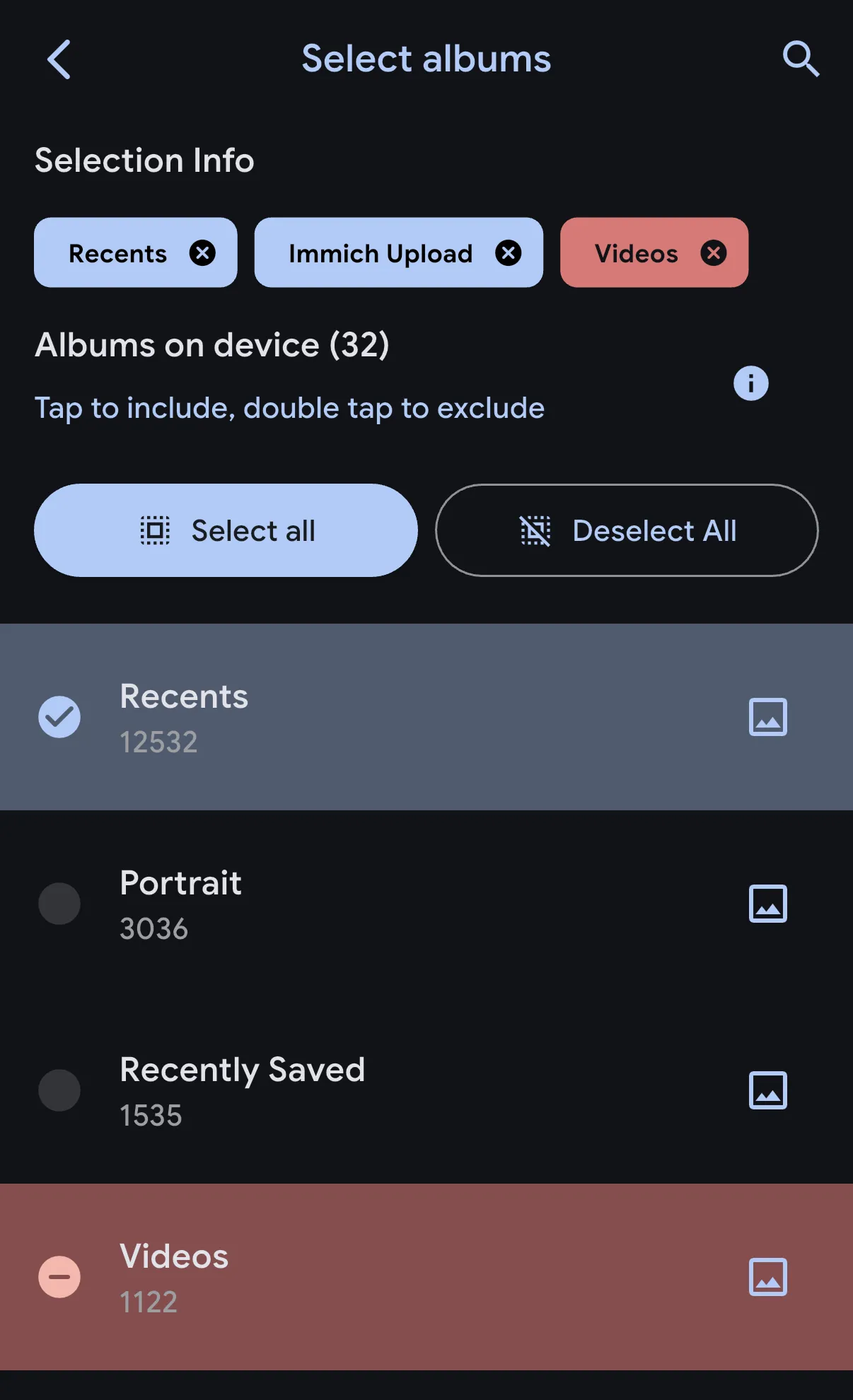
            <p className="step-intro">For the first test, a small album with one photo you can spare is enough.</p>
            <ol className="click-list"><li><span className="click-num">1</span><span>Open the <strong>cloud icon</strong> at the top right. Under <span className="key">Backup Albums</span>, tap <span className="key">Select</span>.</span></li><li><span className="click-num">2</span><span>Select your test album. The picture marks <span className="key">Recents</span> as an example.</span></li><li><span className="click-num">3</span><span>Use the back arrow to return to the backup view.</span></li></ol>
            <div className="micro-note"><PhotoGuideIcon name="icon10" /><span>Allow the app to access the photos you want. With limited photo access, the app sees only the pictures you shared with it.</span></div>

            <PhotoGuideDetails>
              <PhotoGuideSummary>Include all new photos later?</PhotoGuideSummary>
              <p>Select the album where your new pictures land. Check its size before you turn on the upload. A large album takes longer.</p>
            </PhotoGuideDetails>

            <div className="step-check"><PhotoGuideIcon name="icon11" /> The backup view shows your selected album.</div>
          </div>

          <div className="panel-visual">
            <span className="screenshot-tag"><PhotoGuideIcon name="icon12" /> VENDOR SCREENSHOT</span>

            <PhotoGuideFigure className="screen-figure portrait" data-asset="albums">
              <div className="screen-image"><img alt="Select an album" decoding="async" height="1000" referrerPolicy="no-referrer" src="https://docs.immich.app/assets/images/backup-album-selection-198b47e0b562cb00dcc5fbf0280bf6da.webp" width="609" /><span className="annotation album-mark" data-n="2" /><a className="image-fallback" href="https://docs.immich.app/assets/images/backup-album-selection-198b47e0b562cb00dcc5fbf0280bf6da.webp" rel="noopener noreferrer" target="_blank"><PhotoGuideIcon name="icon6" /> Open vendor screenshot<span>Loading it needs an internet connection.</span></a><button aria-label="Enlarge screenshot: Select an album" className="zoom-button" data-zoom="albums" type="button"><PhotoGuideIcon name="icon13" /></button></div><PhotoGuideFigcaption>Select an album · <a className="" href="https://docs.immich.app/features/mobile-app/" rel="noopener noreferrer" target="_blank">Immich <PhotoGuideIcon name="icon6" /></a></PhotoGuideFigcaption>
            </PhotoGuideFigure>
          </div>
        </PhotoGuideArticle>

        <PhotoGuideArticle aria-labelledby="kpg-tab-2" className="guide-panel" hidden={true} id="kpg-panel-2" role="tabpanel">
          <div className="panel-copy">
            <div className="step-kicker">STEP 03 / 04</div>
            <h3>Turn on<br />the upload.</h3>
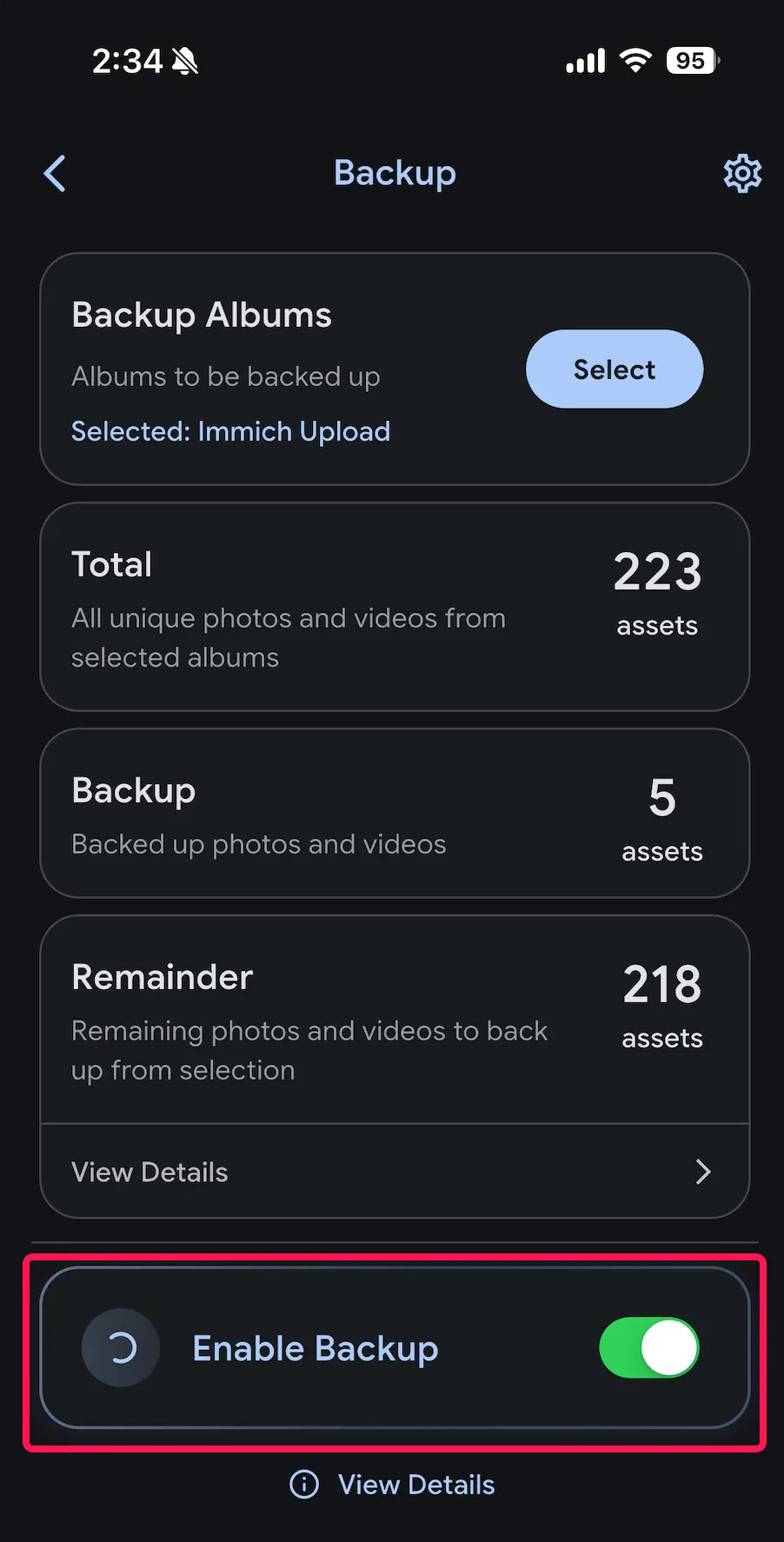
            <p className="step-intro">Stay on Wi-Fi for the first upload and keep the app open.</p>
            <ol className="click-list"><li><span className="click-num">1</span><span>Scroll down in the backup view.</span></li><li><span className="click-num">2</span><span>Turn on <span className="key">Enable Backup</span>. The app uploads the files of your selected album.</span></li><li><span className="click-num">3</span><span>Follow the progress under <span className="key">Remainder</span>, which counts the files still to upload.</span></li></ol>
            <div className="micro-note"><PhotoGuideIcon name="icon14" /><span>By default, Immich uploads only on Wi-Fi. The gear icon in the backup settings holds the mobile data options.</span></div>

            <PhotoGuideDetails>
              <PhotoGuideSummary>Upload while the app is closed?</PhotoGuideSummary>
              <p>Turn on Background App Refresh for Immich in iOS. iOS decides when the app may run in the background, so an immediate upload is not guaranteed. <a data-reveal="kpg-background" href="#kpg-help">See the steps</a>.</p>
            </PhotoGuideDetails>

            <div className="step-check"><PhotoGuideIcon name="icon11" /> No uploads are left for your test album.</div>
          </div>

          <div className="panel-visual">
            <span className="screenshot-tag"><PhotoGuideIcon name="icon12" /> VENDOR SCREENSHOT</span>

            <PhotoGuideFigure className="screen-figure tall" data-asset="enable">
              <div className="screen-image"><img alt="Enable backup" decoding="async" height="1000" referrerPolicy="no-referrer" src="https://docs.immich.app/assets/images/enable-backup-button-590dec9774e09ecc6ec6f1ddeda37a3c.webp" width="508" /><span className="annotation enable-mark" data-n="2" /><a className="image-fallback" href="https://docs.immich.app/assets/images/enable-backup-button-590dec9774e09ecc6ec6f1ddeda37a3c.webp" rel="noopener noreferrer" target="_blank"><PhotoGuideIcon name="icon6" /> Open vendor screenshot<span>Loading it needs an internet connection.</span></a><button aria-label="Enlarge screenshot: Enable backup" className="zoom-button" data-zoom="enable" type="button"><PhotoGuideIcon name="icon13" /></button></div><PhotoGuideFigcaption>Enable backup · <a className="" href="https://docs.immich.app/features/mobile-app/" rel="noopener noreferrer" target="_blank">Immich <PhotoGuideIcon name="icon6" /></a></PhotoGuideFigcaption>
            </PhotoGuideFigure>
          </div>
        </PhotoGuideArticle>

        <PhotoGuideArticle aria-labelledby="kpg-tab-3" className="guide-panel" hidden={true} id="kpg-panel-3" role="tabpanel">
          <div className="panel-copy">
            <div className="step-kicker">STEP 04 / 04</div>
            <h3>Did your photo<br />really arrive?</h3>
            <p className="step-intro">Open your Immich address in a browser on a second device and sign in with the same account.</p>
            <div className="verify-list"><label><input id="kpg-verify-0" type="checkbox" /><span>I can see my test photo in the photo overview.</span></label><label><input id="kpg-verify-1" type="checkbox" /><span>The photo opens in the full view.</span></label><label><input id="kpg-verify-2" type="checkbox" /><span>The app shows no uploads left for the test album.</span></label></div>
            <div className="done-message" hidden={true} id="kpg-done-message">Your confirmation is saved. Your first upload is checked.</div>
            <div className="micro-note"><PhotoGuideIcon name="icon10" /><span>Only tick what you checked yourself. This guide does not read your photo server.</span></div>
            <div className="step-check"><PhotoGuideIcon name="icon11" /> Now you can add more albums.</div>
          </div>

          <div className="panel-visual verify-visual">
            <span className="screenshot-tag">SCHEMATIC CHECK</span>

            <div className="flow-device">
              <div className="flow-node">
                <PhotoGuideIcon name="icon0" />
              </div>

              <span className="flow-arrow">
                <PhotoGuideIcon name="icon5" />
              </span>

              <div className="flow-node">
                <PhotoGuideIcon name="icon15" />

                <span className="check-stamp">
                  <PhotoGuideIcon name="icon4" />
                </span>
              </div>
            </div>

            <div className="flow-labels"><span>Your iPhone</span><span>Your photo server</span></div>
            <div className="flow-caption">One photo. On both devices.</div>
            <div className="flow-sub">Check in the browser, not only in the app on your phone.</div>
          </div>
        </PhotoGuideArticle>

        <div className="wizard-bottom">
          <div className="progress-note">
            <span id="kpg-progress-label">0 of 4 steps done</span>

            <div aria-hidden="true" className="progress-meter">
              <span />

              <span />

              <span />

              <span />
            </div>
          </div>

          <button className="prev" disabled={true} id="kpg-prev" type="button"><PhotoGuideIcon name="icon16" /> Back</button><button className="next" id="kpg-next" type="button"><span>Done · next</span><PhotoGuideIcon name="icon5" /></button>
        </div>
      </div>

      <p className="provenance-inline">Reference images from Immich · English menus · No kombify test captures. <a data-reveal="kpg-sources-detail" href="#kpg-sources">Image sources and date</a></p>
    </section>

    <PhotoGuideAside aria-label="Important note about backups" className="warning">
      <PhotoGuideIcon name="icon17" />

      <div>
        <PhotoGuideStrong>Your photos are uploaded. That is not a backup yet.</PhotoGuideStrong>
        <p>Also back up the photo files <em>and</em> the Immich database to a separate place. <a data-open="kpg-backup-dialog" href="#kpg-more">See what to back up</a>. Keep your originals for now.</p>
      </div>
    </PhotoGuideAside>

    <section aria-labelledby="kpg-more-title" className="more-section" id="kpg-more">
      <div className="section-top">
        <h2 id="kpg-more-title">What comes next.</h2>
      </div>

      <div className="more-grid"><button className="more-card" data-open="kpg-backup-dialog" type="button"><span className="more-icon green"><PhotoGuideIcon name="icon17" /></span><span><strong>Protect your photos further</strong><small>What belongs in a complete backup.</small></span><PhotoGuideIcon name="icon5" /></button><button className="more-card" data-open="kpg-ai-dialog" type="button"><span className="more-icon"><PhotoGuideIcon name="icon18" /></span><span><strong>Use it with or without AI</strong><small>Decide on photo search and face recognition.</small></span><PhotoGuideIcon name="icon5" /></button></div>
    </section>

    <section aria-labelledby="kpg-faq-title" className="faq-section" id="kpg-help">
      <h2 id="kpg-faq-title">Stuck?</h2>

      <PhotoGuideDetails className="faq" id="kpg-no-server">
        <PhotoGuideSummary>I don't have an Immich server yet.</PhotoGuideSummary>
        <div className="answer">The app connects to an existing Immich installation. You can deploy the photo service with a kombify StackKit or set up the server manually. <a className="" href="/guides/stackkits/use-cases/photos">Start with kombify <PhotoGuideIcon name="icon6" /></a> · <a className="" href="https://docs.immich.app/install/docker-compose/" rel="noopener noreferrer" target="_blank">Official manual installation <PhotoGuideIcon name="icon6" /></a>.</div>
      </PhotoGuideDetails>

      <PhotoGuideDetails className="faq">
        <PhotoGuideSummary>My photo address does not open.</PhotoGuideSummary>
        <div className="answer">Test the same address in a browser first. If your server runs only on your home network, connect your phone to that Wi-Fi or to the private access you set up. Check the spelling and whether the server is reachable. Do not bypass certificate warnings. <a className="" href="https://docs.immich.app/administration/reverse-proxy/" rel="noopener noreferrer" target="_blank">Notes for the operator <PhotoGuideIcon name="icon6" /></a>.</div>
      </PhotoGuideDetails>

      <PhotoGuideDetails className="faq" id="kpg-background">
        <PhotoGuideSummary>Photos upload only while the app is open.</PhotoGuideSummary>
        <div className="answer">On the iPhone, open <strong>Settings → General → Background App Refresh</strong>. Allow the feature and turn it on for Immich. iOS still decides when background tasks run and for how long. Keep the app open for the first large upload. <a className="" href="https://docs.immich.app/features/mobile-backup/#ios" rel="noopener noreferrer" target="_blank">Vendor guide <PhotoGuideIcon name="icon6" /></a>.</div>
      </PhotoGuideDetails>

      <PhotoGuideDetails className="faq">
        <PhotoGuideSummary>My app looks different from the pictures.</PhotoGuideSummary>
        <div className="answer">The pictures come from the English Immich documentation. Language, operating system and app version change what you see. Check which server and app versions belong together instead of updating the server blindly. <a className="" href="https://docs.immich.app/features/mobile-app/" rel="noopener noreferrer" target="_blank">Current app guide <PhotoGuideIcon name="icon6" /></a> · <a className="" href="https://docs.immich.app/install/upgrading/" rel="noopener noreferrer" target="_blank">Upgrade notes <PhotoGuideIcon name="icon6" /></a>.</div>
      </PhotoGuideDetails>
    </section>

    <PhotoGuideFooter className="footline">
      <div className="attribution"><strong>Immich is the photo app. kombify helps you deploy and use it.</strong><br />kombify does not make Immich. <a className="" href="https://immich.app" rel="noopener noreferrer" target="_blank">Vendor <PhotoGuideIcon name="icon6" /></a> · <a className="" href="https://docs.immich.app" rel="noopener noreferrer" target="_blank">Documentation <PhotoGuideIcon name="icon6" /></a> · <a className="" href="https://github.com/immich-app/immich/blob/main/LICENSE" rel="noopener noreferrer" target="_blank">AGPLv3 license <PhotoGuideIcon name="icon6" /></a></div><button className="reset" id="kpg-reset-progress" type="button">Reset progress</button>
    </PhotoGuideFooter>

    <section className="source-section" id="kpg-sources">
      <PhotoGuideDetails id="kpg-sources-detail">
        <PhotoGuideSummary>Image sources, checked links and date</PhotoGuideSummary>

        <div className="source-content">
          <p><strong>Reference images · September 16, 2026.</strong> The step images are real reference views from the official Immich documentation. They are not recreated app screens and not results of a kombify rollout. This guide added the thin violet markers.</p>
          <p>The vendor images do not state their exact app version. Language, operating system and app version can differ. Captures from kombify rollout tests are not included yet.</p>
          <p>Your progress is stored only in this browser. The guide connects no accounts, asks for no passwords and runs no uploads. The embedded vendor images need an internet connection.</p>
          <div className="source-links"><a className="" href="https://docs.immich.app/features/mobile-app/" rel="noopener noreferrer" target="_blank">App and setup <PhotoGuideIcon name="icon6" /></a><a className="" href="https://docs.immich.app/features/mobile-backup/" rel="noopener noreferrer" target="_blank">Mobile upload <PhotoGuideIcon name="icon6" /></a><a className="" href="https://docs.immich.app/administration/backup-and-restore/" rel="noopener noreferrer" target="_blank">Backup and restore <PhotoGuideIcon name="icon6" /></a><a className="" href="https://docs.immich.app/features/searching/" rel="noopener noreferrer" target="_blank">AI search <PhotoGuideIcon name="icon6" /></a><a className="" href="https://docs.immich.app/assets/images/sign-in-phone-92be8a8eab0f72d121e8b62e6f69df17.webp" rel="noopener noreferrer" target="_blank">Image: app start <PhotoGuideIcon name="icon6" /></a><a className="" href="https://docs.immich.app/assets/images/backup-album-selection-198b47e0b562cb00dcc5fbf0280bf6da.webp" rel="noopener noreferrer" target="_blank">Image: album selection <PhotoGuideIcon name="icon6" /></a><a className="" href="https://docs.immich.app/assets/images/enable-backup-button-590dec9774e09ecc6ec6f1ddeda37a3c.webp" rel="noopener noreferrer" target="_blank">Image: backup <PhotoGuideIcon name="icon6" /></a></div>
        </div>
      </PhotoGuideDetails>

      <div className="dim">Guide by kombify · Images and trademarks belong to their respective owners.</div>
    </section>
  </div>

  <PhotoGuideDialog aria-labelledby="kpg-backup-title" id="kpg-backup-dialog">
    <div className="dialog-header">
      <h2 id="kpg-backup-title">What belongs in your backup?</h2><button aria-label="Close" className="dialog-close" data-close="" type="button"><PhotoGuideIcon name="icon19" /></button>
    </div>

    <div className="dialog-body">
      <p>A phone upload does not protect you from a hardware failure or data loss on your photo server.</p>
      <ol className="simple-steps"><li><strong>Back up the photo and video files.</strong> Not just the thumbnails.</li><li><strong>Back up the Immich database too.</strong> It holds album assignments and other metadata. The automatic database export contains no photos.</li><li><strong>Keep the copy separate and test a restore.</strong> Another directory on the same disk is not enough.</li></ol><a className="primary-link" href="/guides/stackkits/back-up-and-restore">Back up with kombify StackKits <PhotoGuideIcon name="icon6" /></a>
      <p className="fineprint">Running Immich yourself? <a className="" href="https://docs.immich.app/administration/backup-and-restore/" rel="noopener noreferrer" target="_blank">Official Immich backup guide <PhotoGuideIcon name="icon6" /></a>. The vendor guide opens in a new tab.</p>
    </div>
  </PhotoGuideDialog>

  <PhotoGuideDialog aria-labelledby="kpg-ai-title" id="kpg-ai-dialog">
    <div className="dialog-header">
      <h2 id="kpg-ai-title">Your photos, with or without AI.</h2><button aria-label="Close" className="dialog-close" data-close="" type="button"><PhotoGuideIcon name="icon19" /></button>
    </div>

    <div className="dialog-body">
      <p><strong>Without AI analysis.</strong> This guide covers uploads, the photo view and albums. They work without smart search and face recognition.</p>
      <p><strong>With AI analysis.</strong> Immich can, for example, find pictures by search terms and group people. You configure these features in the server administration.</p>
      <p>Your installation decides whether and where this processing runs. Turning off new analysis does not delete existing analysis results.</p><a className="primary-link" href="https://docs.immich.app/features/searching/" rel="noopener noreferrer" target="_blank">Search and options in Immich <PhotoGuideIcon name="icon6" /></a>
      <p className="fineprint"><a className="" href="https://docs.immich.app/features/facial-recognition/" rel="noopener noreferrer" target="_blank">Face recognition <PhotoGuideIcon name="icon6" /></a> · <a className="" href="https://docs.immich.app/FAQ/#how-can-i-disable-machine-learning" rel="noopener noreferrer" target="_blank">Turn off AI <PhotoGuideIcon name="icon6" /></a>. This guide changes no settings.</p>
    </div>
  </PhotoGuideDialog>

  <PhotoGuideDialog aria-labelledby="kpg-zoom-title" className="zoom-dialog" id="kpg-zoom-dialog">
    <div className="dialog-header">
      <h2 id="kpg-zoom-title">Vendor screenshot</h2><button aria-label="Close image" className="dialog-close" data-close="" type="button"><PhotoGuideIcon name="icon19" /></button>
    </div>

    <div className="zoom-content"><img alt="" id="kpg-zoom-image" /><a href="https://docs.immich.app" id="kpg-zoom-source" rel="noopener noreferrer" target="_blank">Open the original from the vendor <PhotoGuideIcon name="icon6" /></a></div>
  </PhotoGuideDialog>

  <div className="toast" hidden={true} id="kpg-toast" role="status" />
</PhotoGuide>