
Android, iPhone and iPad 4 short steps No prior knowledge needed
What you need A running Immich server Your photo server’s public HTTPS address Your Immich account One test photo in an albumNot set up yet?

The app capture shows Android in English. For iOS screens, use the linked Immich mobile guide.

Connect step by step.

STEP 01 / 04

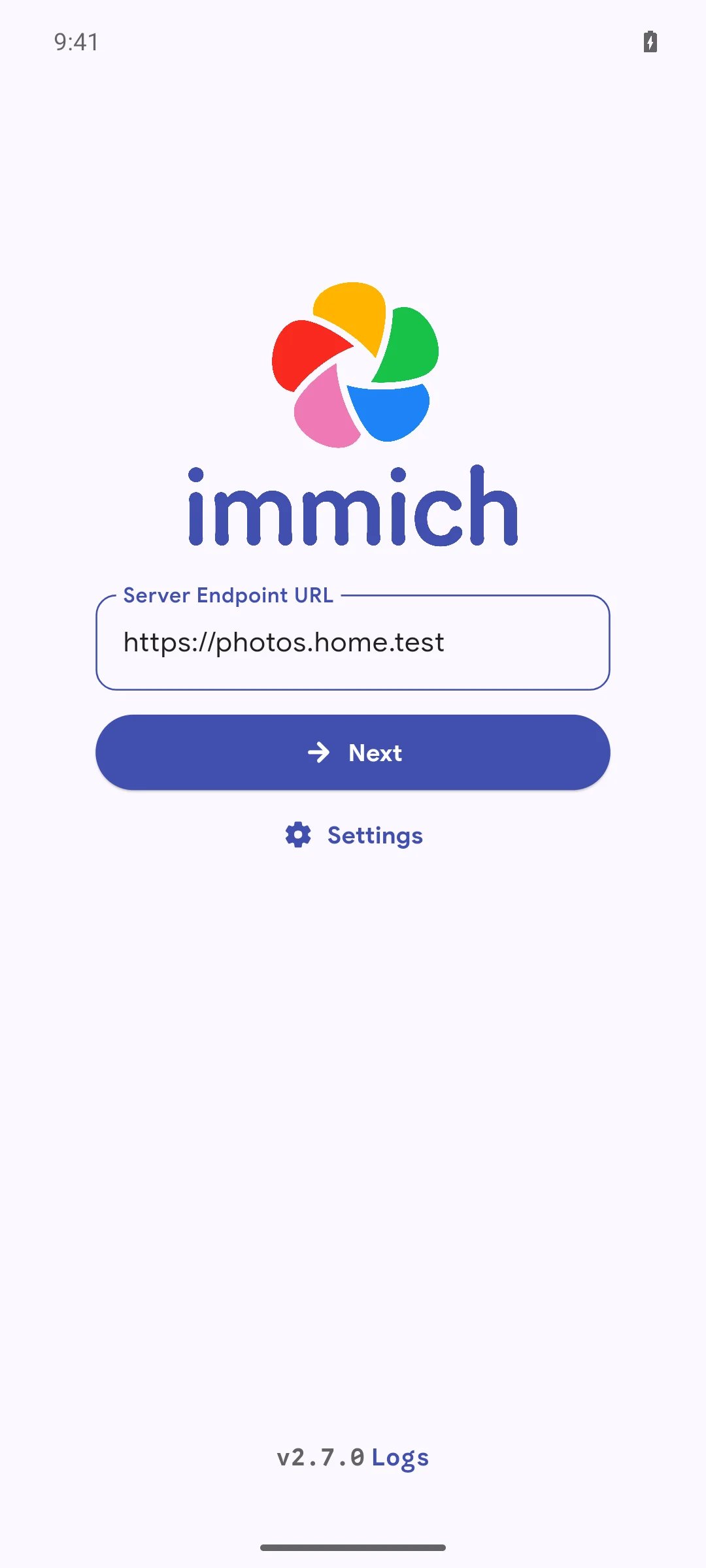
Enter your photo address.

Open the Immich app. It first asks which server you want to connect to.

  1. 1Enter your own Immich address in Server Endpoint URL.
  2. 2Tap Next and sign in with your Immich account.
The address in the picture is only an example. Use the address you open your photo server with in a browser.

Where do I get the address and account?

From the person who set up your photo server. If a kombify setup already runs it, open the photo service from your Node Hub. Your Immich account is not automatically your kombify account.
Next, you see your photo overview.
KOMBIFY SCREENSHOT
Enter your own photo server address · kombify captureImmich Android 2.7.0 · captured 2026-10-21
STEP 02 / 04

Choose which photos to upload.

For the first test, a small album with one photo you can spare is enough.

  1. 1Open the cloud icon at the top right. Under Backup Albums, tap Select.
  2. 2Select your test album. Choose only the album containing the test photo first.
  3. 3Use the back arrow to return to the backup view.
Allow the app to access the photos you want. With limited photo access, the app sees only the pictures you shared with it.

Include all new photos later?

Select the album where your new pictures land. Check its size before you turn on the upload. A large album takes longer.
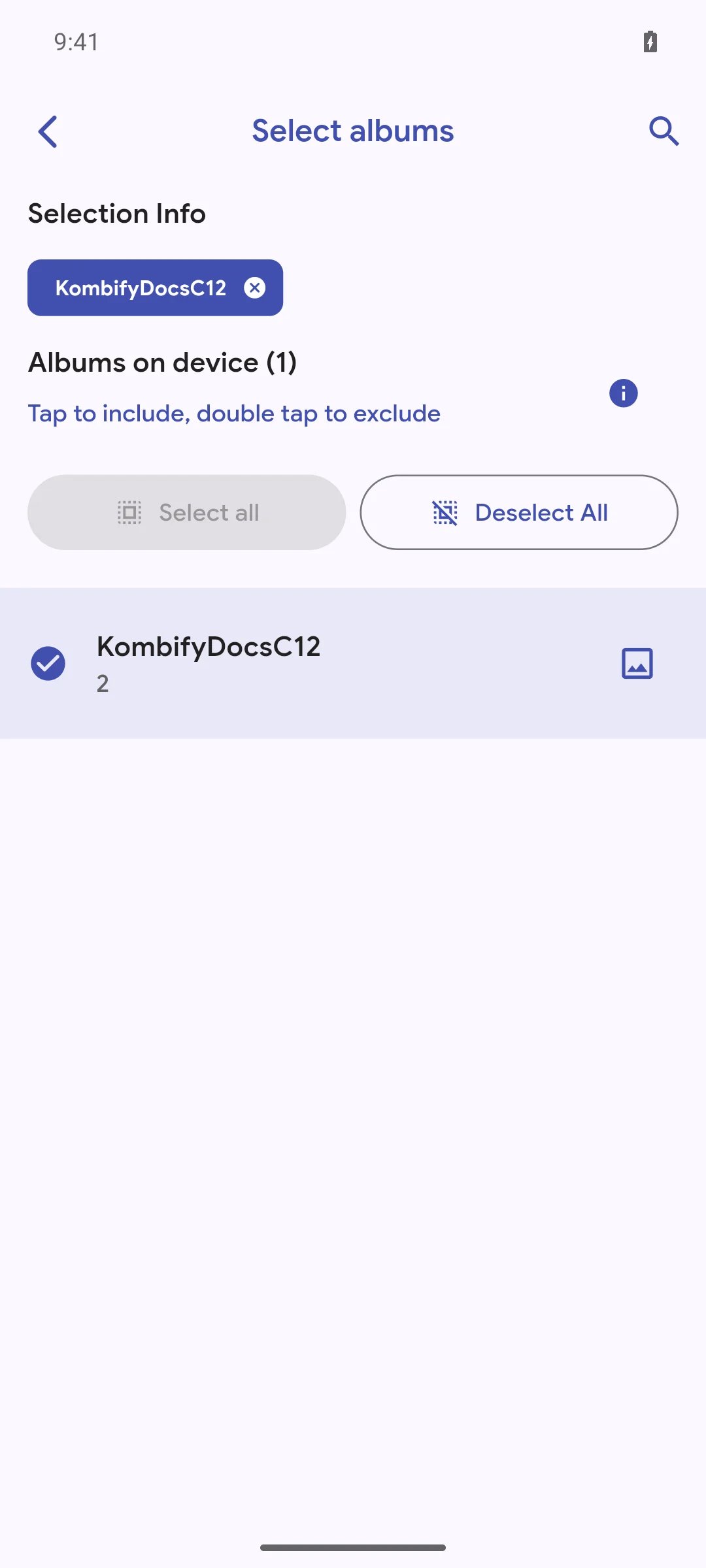
The backup view shows your selected album.
KOMBIFY SCREENSHOT
Choose only your test album first · kombify captureImmich Android 2.7.0 · captured 2026-10-21
STEP 03 / 04

Turn on the upload.

Stay on Wi-Fi for the first upload and keep the app open.

  1. 1Scroll down in the backup view.
  2. 2Turn on Enable Backup. The app uploads the files of your selected album.
  3. 3Follow the progress under Remainder, which counts the files still to upload.
By default, Immich uploads only on Wi-Fi. The gear icon in the backup settings holds the mobile data options.

Upload while the app is closed?

Turn on Background App Refresh for Immich in iOS. iOS decides when the app may run in the background, so an immediate upload is not guaranteed. See the steps.
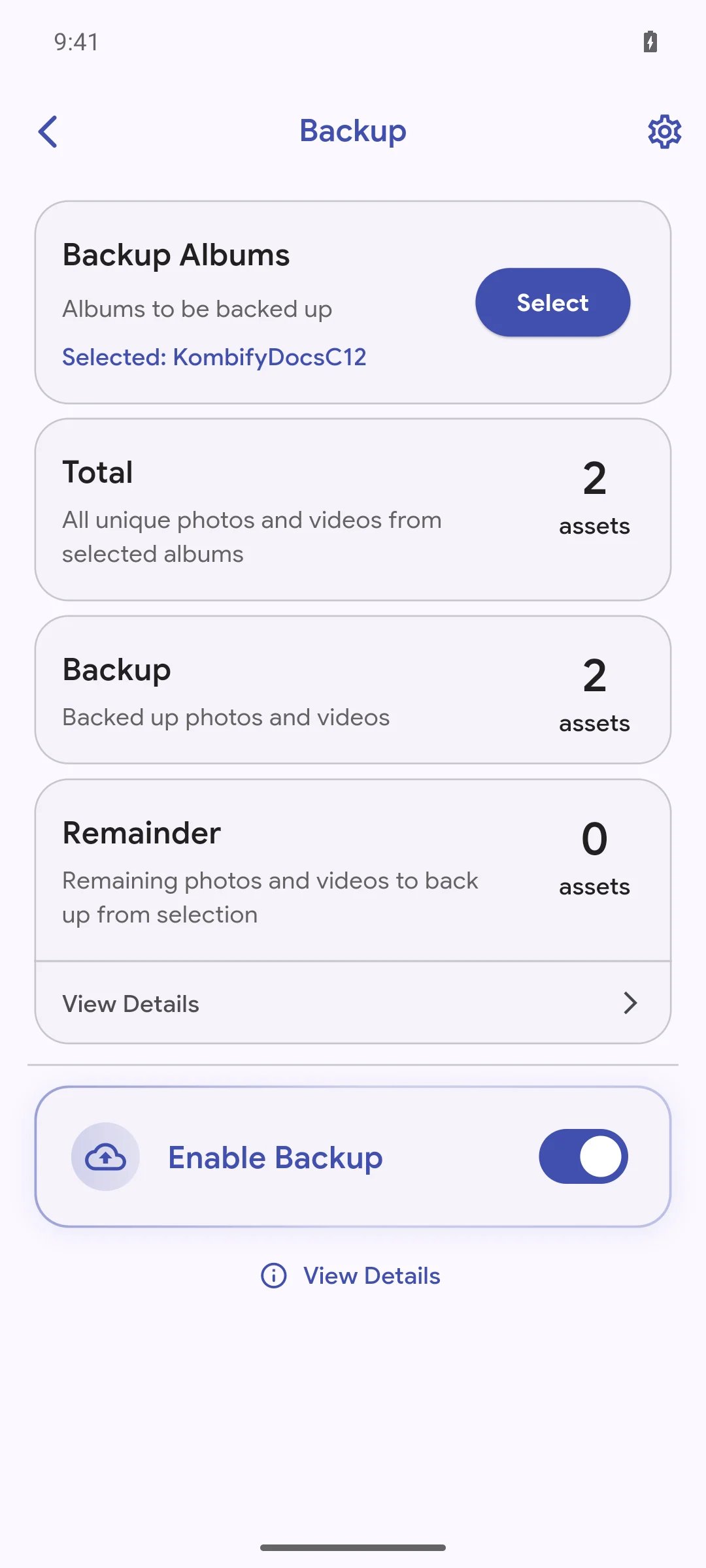
No uploads are left for your test album.
KOMBIFY SCREENSHOT
The test album is backed up; Remainder is zero · kombify captureImmich Android 2.7.0 · captured 2026-10-21
STEP 04 / 04

Did your photo really arrive?

Open your Immich address in a browser on a second device and sign in with the same account.
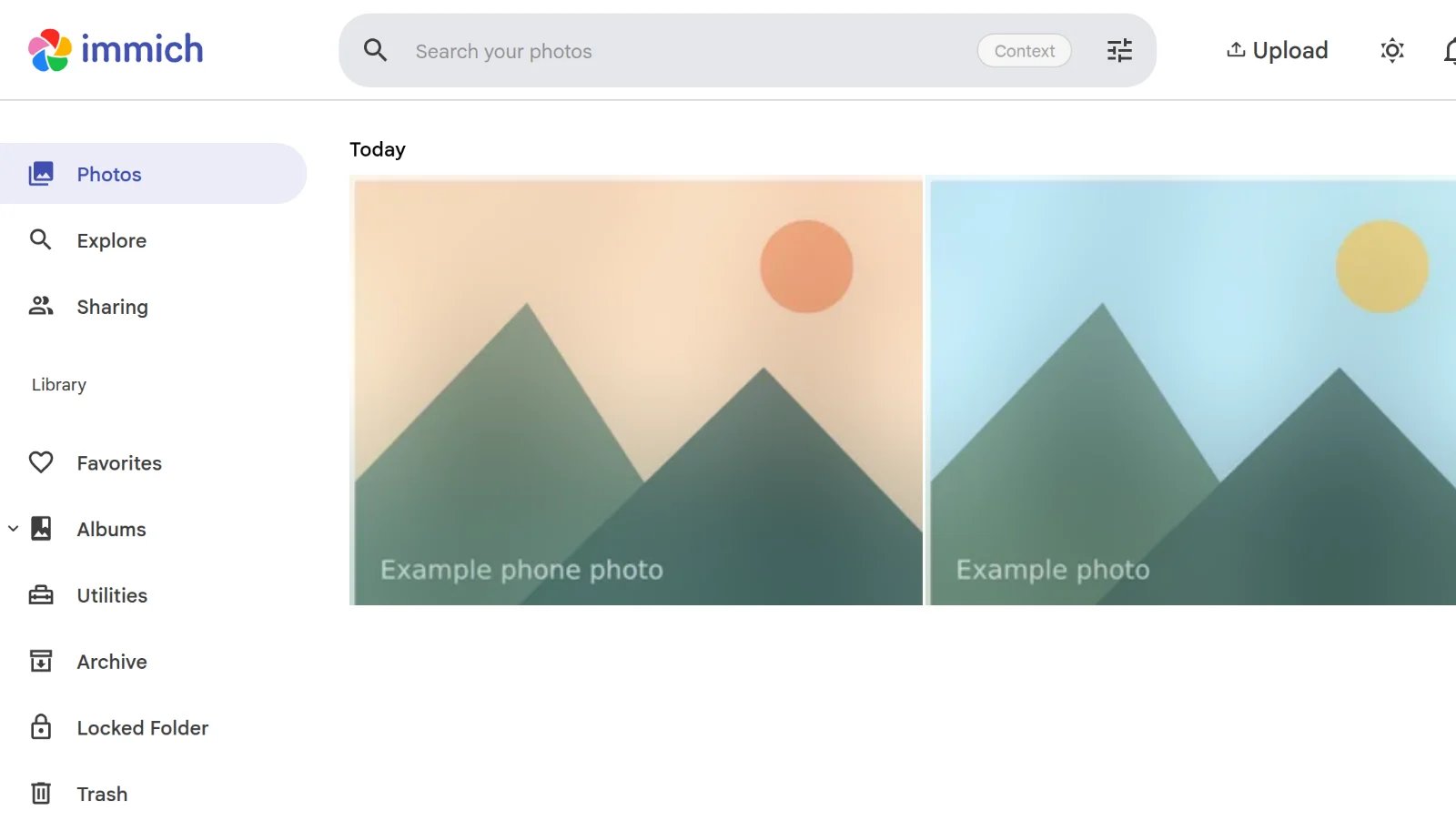
Only tick what you checked yourself. This guide does not read your photo server.
Now you can add more albums.
KOMBIFY SCREENSHOT
Check the photo overview in a browser · kombify captureImmich server 2.7.0 · captured 2026-10-21
0 of 4 steps done

Own Immich Android and web captures · synthetic examples · English UI. Image sources and date

What comes next.

Stuck?

Enable Background App Refresh for Immich in iOS Settings. iOS decides when the app may run; an immediate upload is not guaranteed. Keep Immich open for your first test and use the vendor mobile guide for your iOS version.
Ask the person who set up kombify. Your Immich account belongs to the photo service; it is not automatically your kombify account. Photos setup.
Use the public HTTPS address provided for the photo service. It works away from home too. Stop at a certificate warning and ask the person who set up kombify to check the address and certificate; do not bypass the warning.
No. Protect the photo and video files and the Immich database with a separate backup, and test a restore. Back up and restore.
No. Uploads, the photo view and albums work without those analysis features. Immich search settings (opens in a new tab).
Immich is made by the Immich project (opens in a new tab) and is licensed under AGPL-3.0. kombify captured the screens from unchanged software; names and logos remain their owners’ trademarks. No endorsement is implied.

Captured October 21, 2026 from official Immich Android 2.7.0 and the digest-pinned Immich 2.7.0 server used by the released StackKits catalog. The APK was verified against the official release asset digest. The server ran in Docker on an existing real test server, using a made-up Alex Example account and owned example graphics. These are application reference captures, not a StackKits rollout or recovery certification.

The example HTTPS address is instructional; use your own installation’s address. The guide sends no data to your server. Progress and checks stay in this browser.

iOS screens remain links to the vendor guide; no third-party screenshot loads on this page.

Guide by kombify · Product names, screenshots of vendor apps and trademarks belong to their respective owners.