
First, get the Bitwarden app.
All downloads from Bitwarden (opens in a new tab)Browser stores: Chrome (opens in a new tab) · Firefox (opens in a new tab) · Edge (opens in a new tab) · Safari (Mac App Store) (opens in a new tab). Your vault runs on Vaultwarden, which works with these official Bitwarden apps. You do not need a separate Vaultwarden app.
Set up your vault step by step.
Open your vault in a browser.
Start on a computer. Your vault has its own web address, like a website that only your household uses.
- 1Type your vault address into the browser’s address bar, for example https://vault.lab.home, and press Enter.
- 2Below the login box, click Create account.
What is a vault address?
It is the web address of your household’s password vault. It is the public HTTPS address of the vault, on your own domain or a kombify.me address. It also works away from home. The person who set up kombify can tell you the exact address.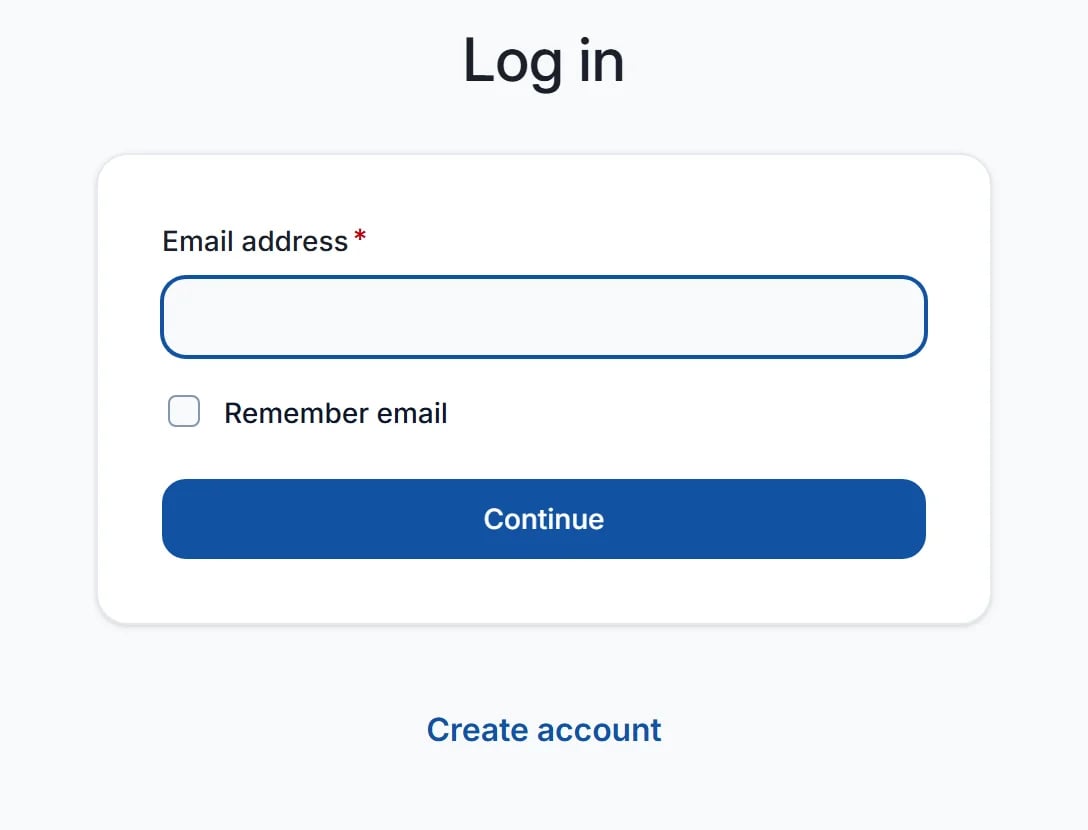
Create your account.
Your vault only accepts email addresses that were invited. Use the same address the invitation went to.
- 1In Email address, enter your invited email address.
- 2In Name, enter your name. The person who runs the vault, and anyone you share passwords with, can see it.
- 3Click Continue.
Is this my kombify account?
No. This account belongs only to your password vault. It has its own email address and its own master password.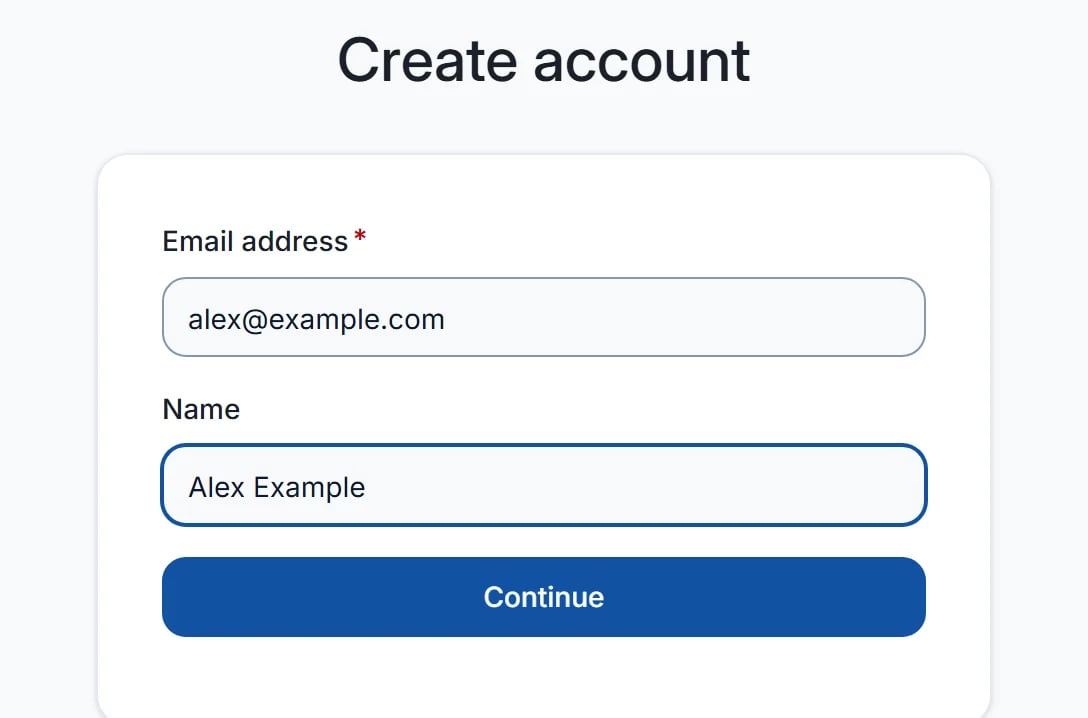
Choose your master password.
The master password is the one password you still need to remember. It unlocks all the others.
- 1In Master password, enter a long password. A short sentence of four or more words works well.
- 2Enter the same password again in Confirm master password.
- 3Click Create account. If the page suggests the browser extension, click Add it later and then Skip to web app. You connect the extension in step 5.
What does the strength bar mean?
It estimates how hard your password is to guess. Aim for Strong. Longer is better than complicated.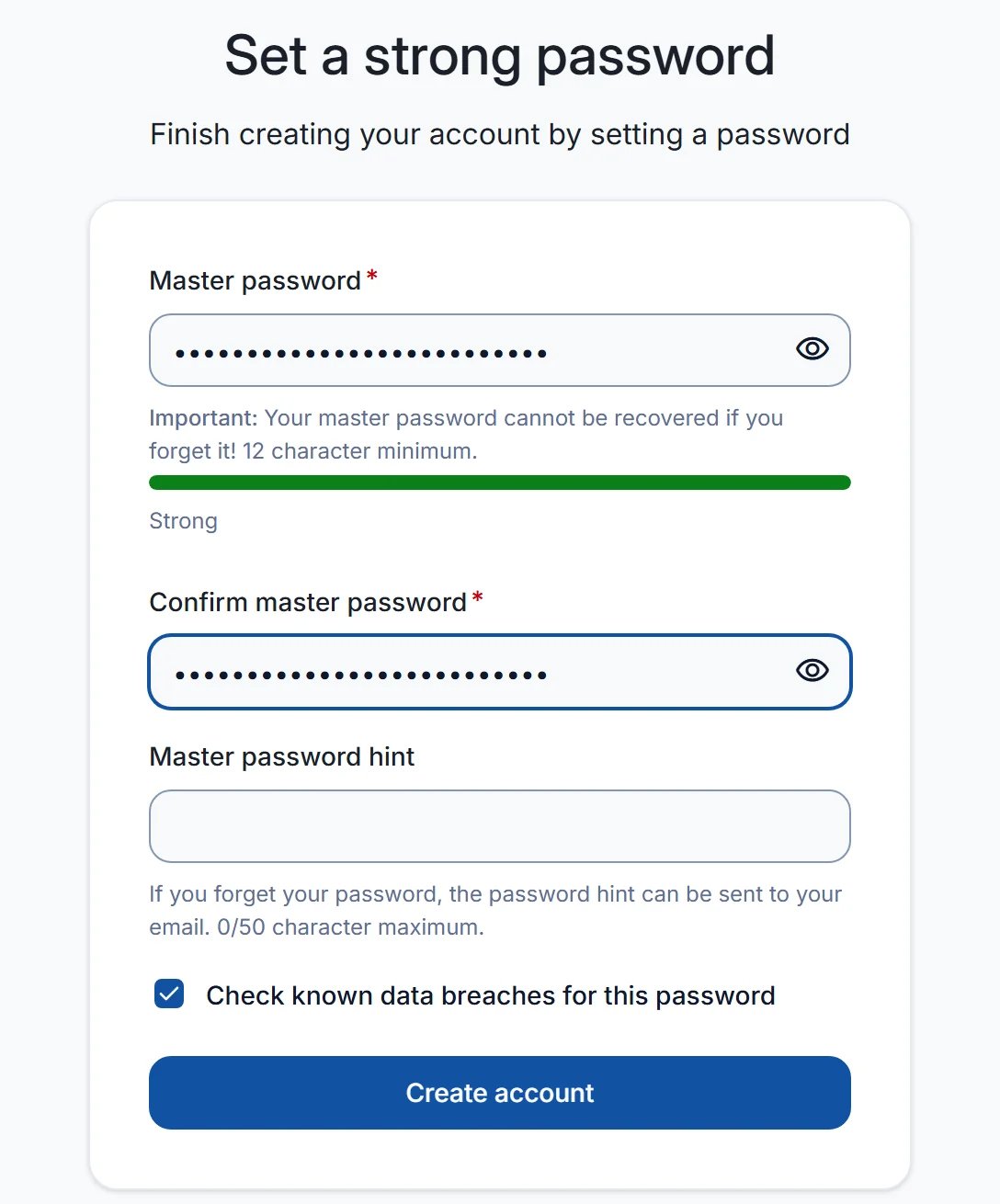
Save your first password.
Save one login as a test. It shows later that your apps are connected to your vault.
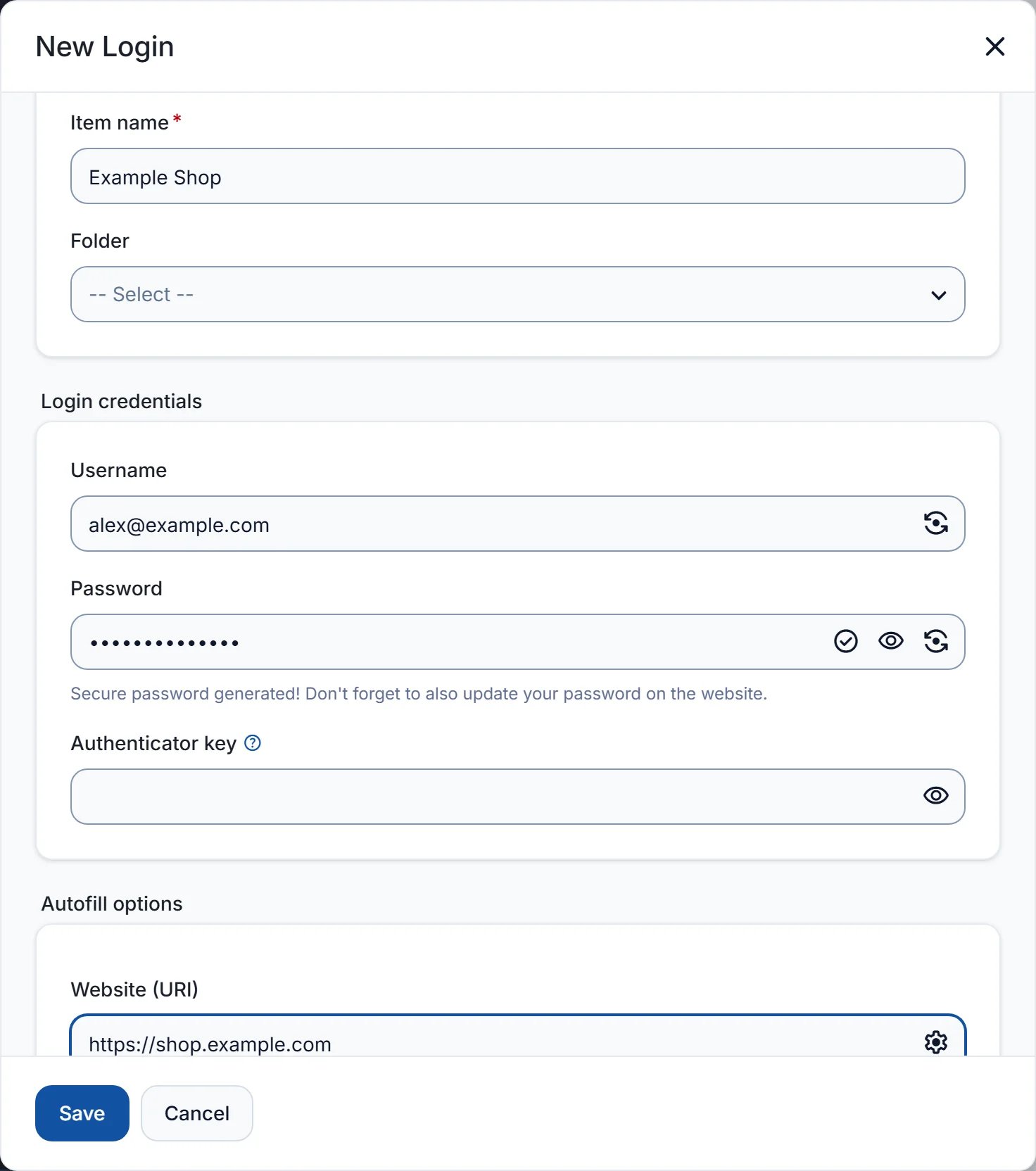
- 1At the top right, click New and choose Login. If a welcome window appears first, click Skip.
- 2In Item name, enter a name you recognize, for example the name of a shop.
- 3Enter your Username. Next to Password, click the circular arrows to create a password, then click Use this password.
- 4Click Save.
Connect the Bitwarden apps.
Each Bitwarden app first connects to Bitwarden’s own servers. Tell it once to use your vault instead.
- 1Install the Bitwarden app from the list above and open it.
- 2On the login screen, open the Logging in on menu and choose Self-hosted. In the browser extension, the menu is called Accessing.
- 3In Server URL, enter your vault address with https:// at the start, then tap Save.
- 4Log in with your email address and master password.
Which apps do the pictures show?
The pictures show our own captures of the official Android app and browser extension in English. Use the iOS vendor guide for iPhone and iPad screens.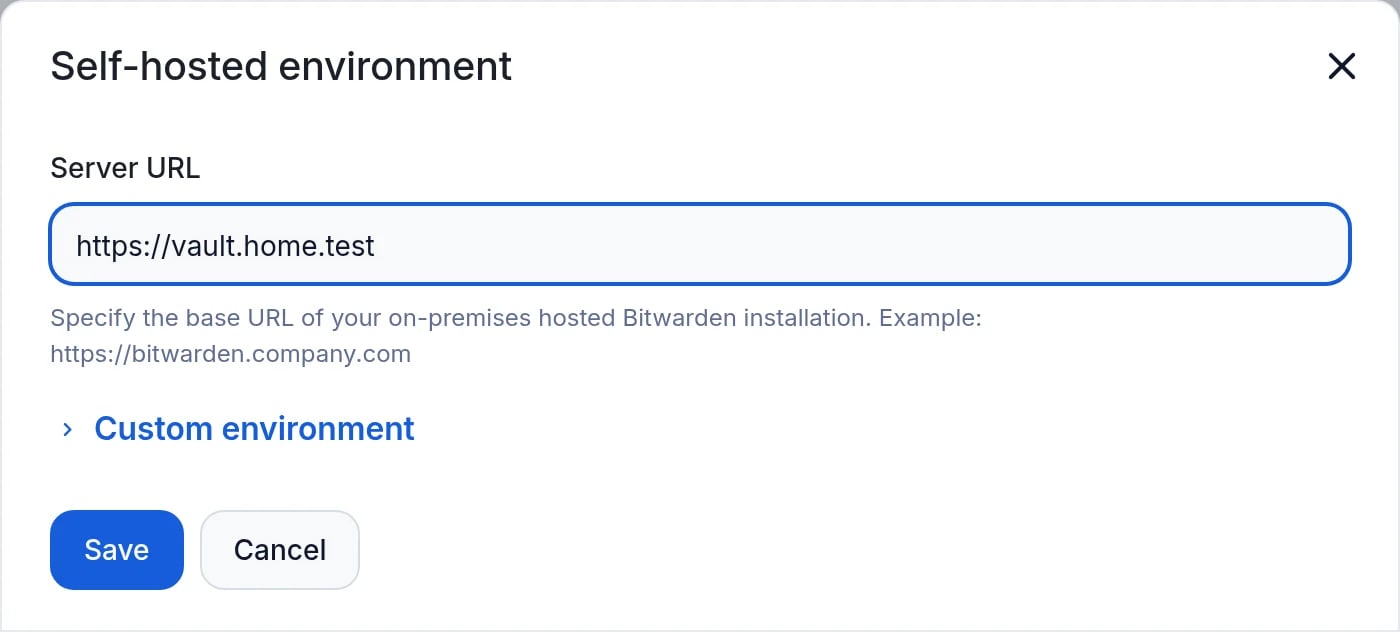
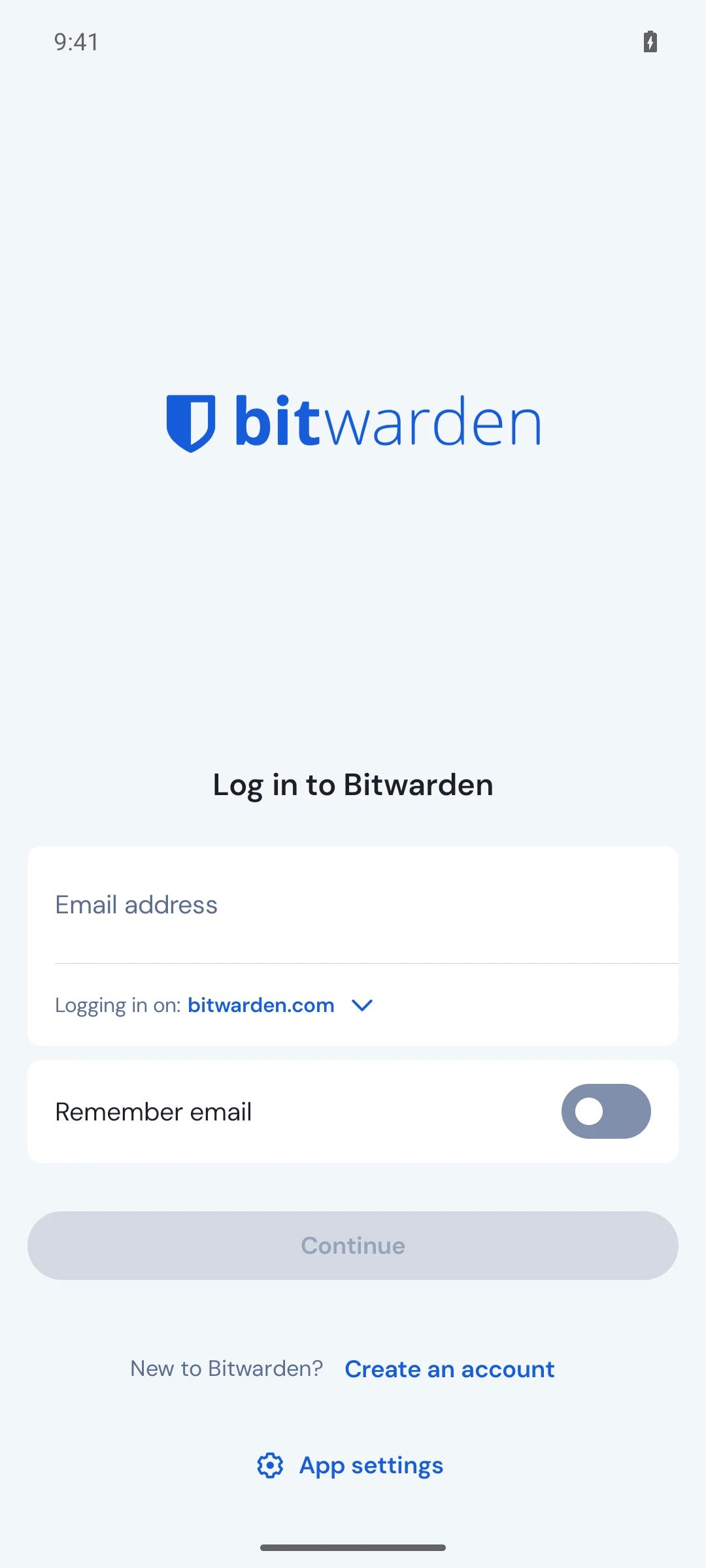
For the iOS screens, use Bitwarden’s own mobile guide. The captures here show Android and the browser extension.
Bitwarden mobile guidebitwarden.com · iPhone and iPad (opens in a new tab)Is everything connected?
Check it in the web vault and in one app. Only tick what you checked yourself.
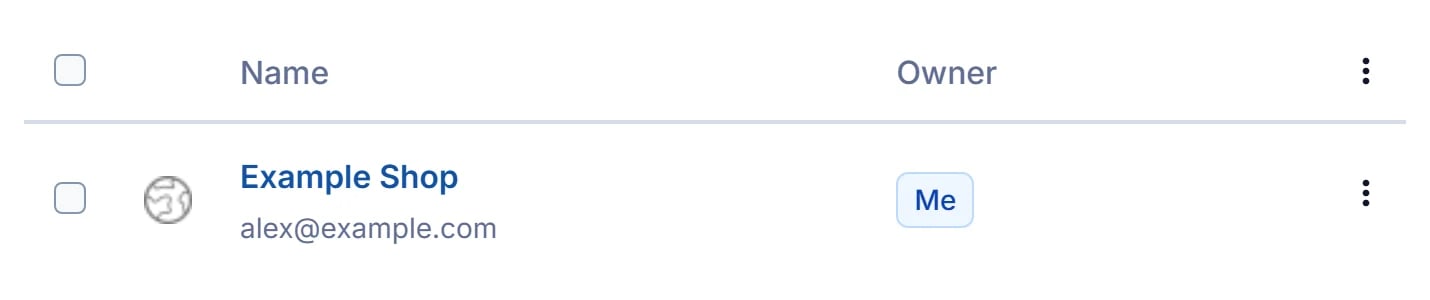
Own Vaultwarden web, Bitwarden Android and browser captures · example data · English menus. Image sources and date
What comes next.
Stuck?
Screenshots · September 24, 2026. kombify captured the web vault pictures from a local reference install: Vaultwarden 1.37.2, the image the StackKits catalog delivers for Passwords, with its bundled web vault 2026.7.0 (the Bitwarden web client, GPL-3.0). The install used the example address https://vault.home.test and the made-up account alex@example.com. It is a reference install, not a StackKits rollout test. This guide added the violet markers.
Bitwarden screenshots were captured by kombify on October 21, 2026 from the official Android 2026.10.0 APK and browser 2026.10.0 extension release, verified against their published SHA-256 digests. They show normal app screens with an example address, no personal account or vault data. The Android app’s own Allow screen capture setting was used. Bitwarden clients are GPL-3.0; product names and logos remain Bitwarden trademarks. The iOS screens remain a vendor link.
The original store and help links were checked on September 24, 2026; the official client release sources and captured screens were checked on October 21, 2026. Your progress stays in this browser. The guide connects no accounts and asks for no passwords.